This article discusses why I, Ivon, prefer KDE Plasma over GNOME as my Linux desktop. I will try to first compare the differences between the two from an objective angle, then transition into extremely subjective personal opinions.
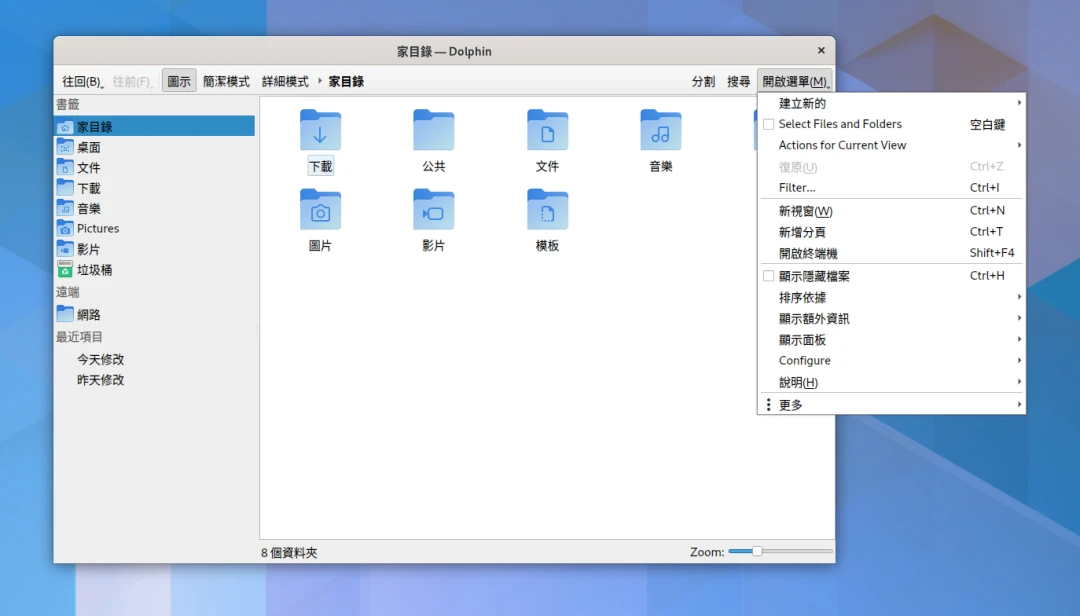
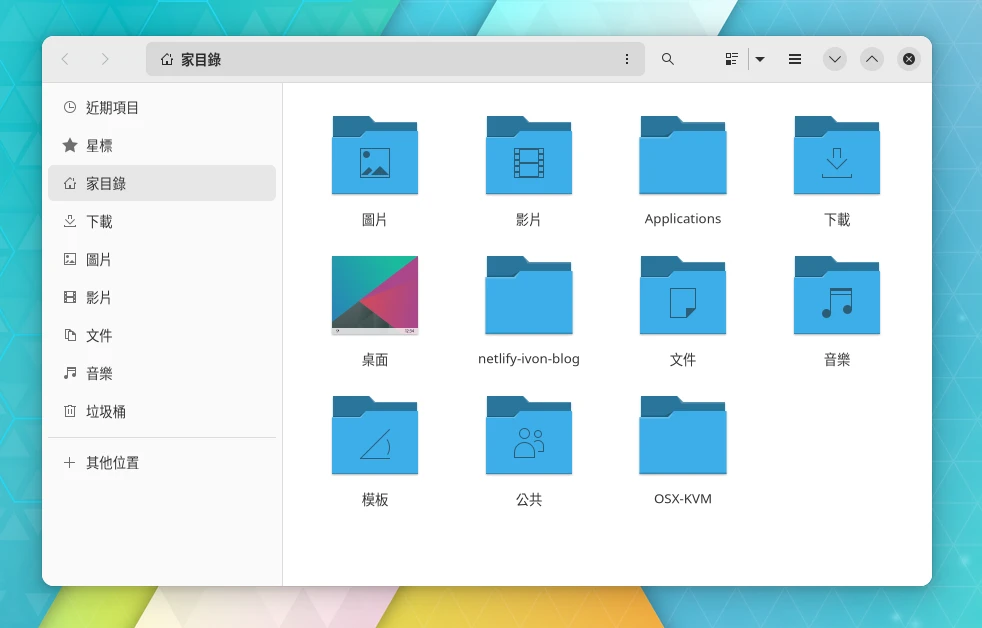
Current Linux distributions offer more than 20 desktop environments for users to choose from, and the largest groups are “GNOME” and “KDE Plasma.” From the image below, you can see that their design languages differ enormously.
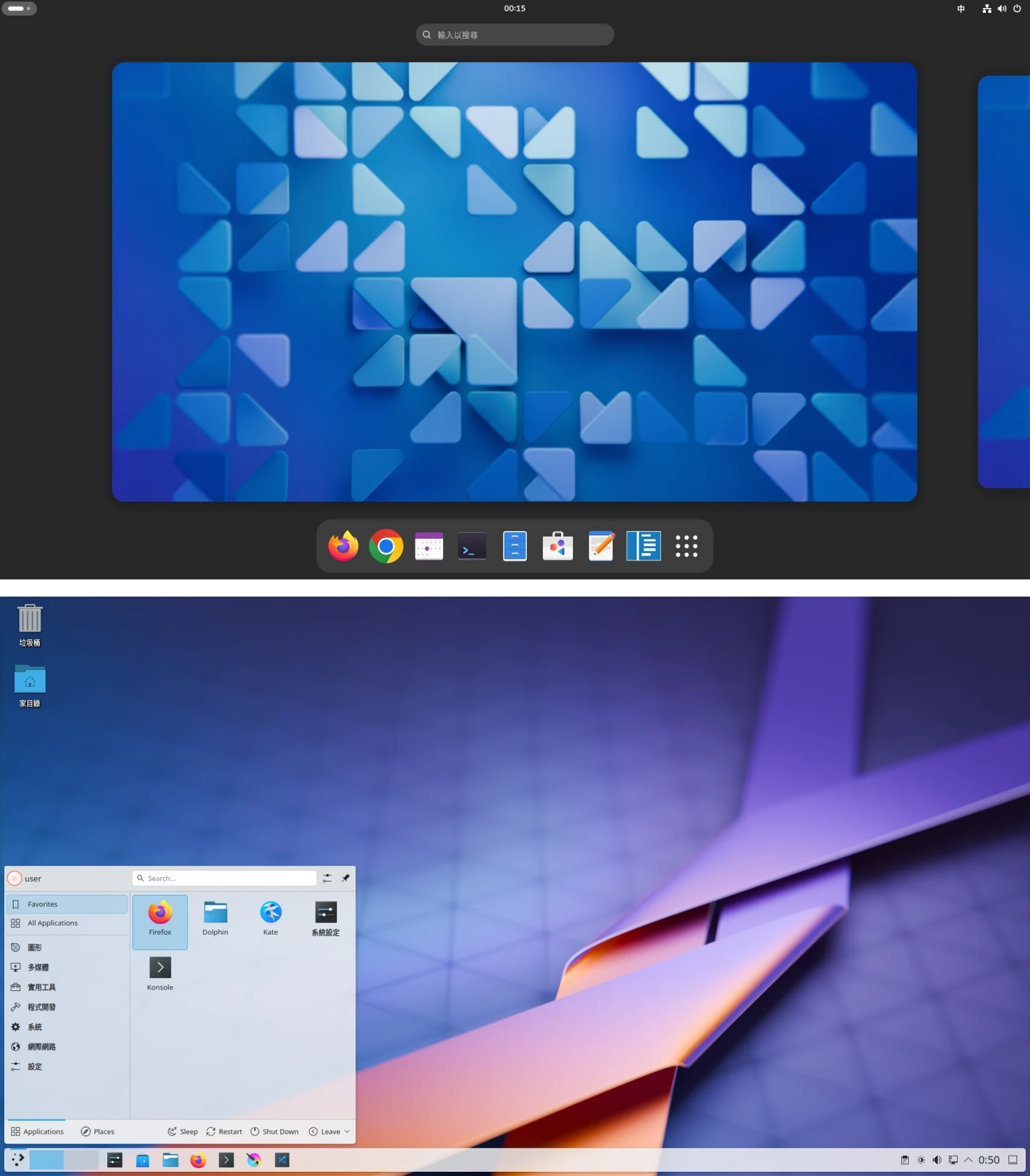
Thanks to Linux’s high degree of freedom, Linux can have multiple desktop environments coexist, but most people get used to using the desktop installed when they install the system, right? The same applies to “Arch Linux”, whose installation process requires self-assembly.
The desktop environment largely determines the experience of using a Linux computer, so choosing a desktop that suits you is very important.
I have installed Linux on different computers and tried both GNOME and KDE Plasma desktops. After several years of repeated comparison, I reached my future preference for desktop environments: if I distro-hop, KDE Plasma takes priority, with GNOME second. In other words, when installing a desktop environment, KDE Plasma is always the main choice.
Why do I think this? Please read on.
The GNOME and KDE desktops mentioned here both refer to “unmodified original” vanilla versions. Heavily patched ones like Ubuntu are not included.
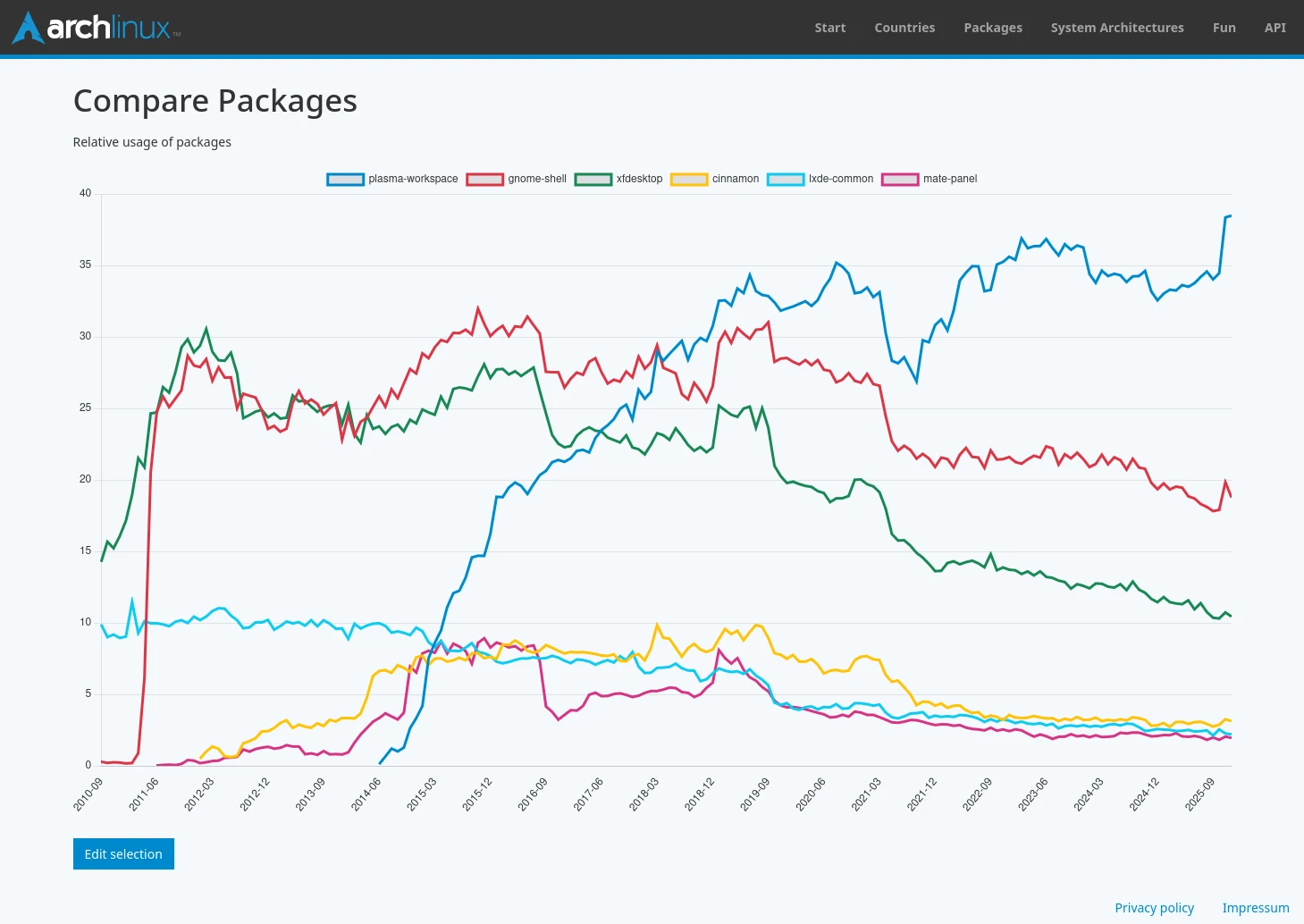
Let’s start with an interesting statistic. The Arch Linux official website tracks desktop environment package installations, and we can see that KDE downloads gradually surpassed GNOME and XFCE after 2018.
1. Brief Introduction to GNOME and KDE Plasma #
First, let me explain why I only consider GNOME and KDE Plasma: watermelon leans toward the bigger side (Si-kue uá tuā pîng). Things used by many people can receive the most timely support. I know Linux has other desktop environments, but sorry, this article will not discuss them.
Next, let’s talk about market share. GNOME and KDE Plasma are both desktop environments with long histories. GNOME released its first version in 1999, while KDE released in 1998. Later, KDE became the code name of a large project, so when discussing the desktop environment, the name KDE Plasma is used. From here, we can observe that KDE was developed earlier than GNOME!
But early KDE made developers wary because QT’s license terms were not free enough. Trolltech’s earliest QT version used the FreeQt License, which was incompatible with free software licenses. Because most KDE components were written with QT, relying on components with licensing problems was dangerous and could create unnecessary legal issues. This indirectly promoted the birth of GNOME, which mainly used GTK for development and adopted the GPL license. Major companies then adopted GNOME as their main desktop environment. However, after QT later revised its terms, the licensing problem disappeared, and the KDE Plasma desktop license became a mixture of GPL + LGPL + BSD. Now both desktop environments are free software and have no licensing issue.
Possibly because of the licensing factor above, as time passed, more than half of commercial Linux distributions on the market adopted GNOME as the default desktop, including Ubuntu, RHEL, SUSE Linux, and System76 Pop!_OS. Therefore, saying GNOME is the face of Linux systems is not an exaggeration.
A common saying is that GNOME’s code is maintained not only by the civilian open source community, but also supported by major commercial companies such as RedHat and SUSE. They use GNOME as the desktop for their own commercial distributions, which may be deployed on critical servers, so developers will not casually ruin the project (?) The GNOME desktop should theoretically be very stable, or else why would commercial companies trust it so much?
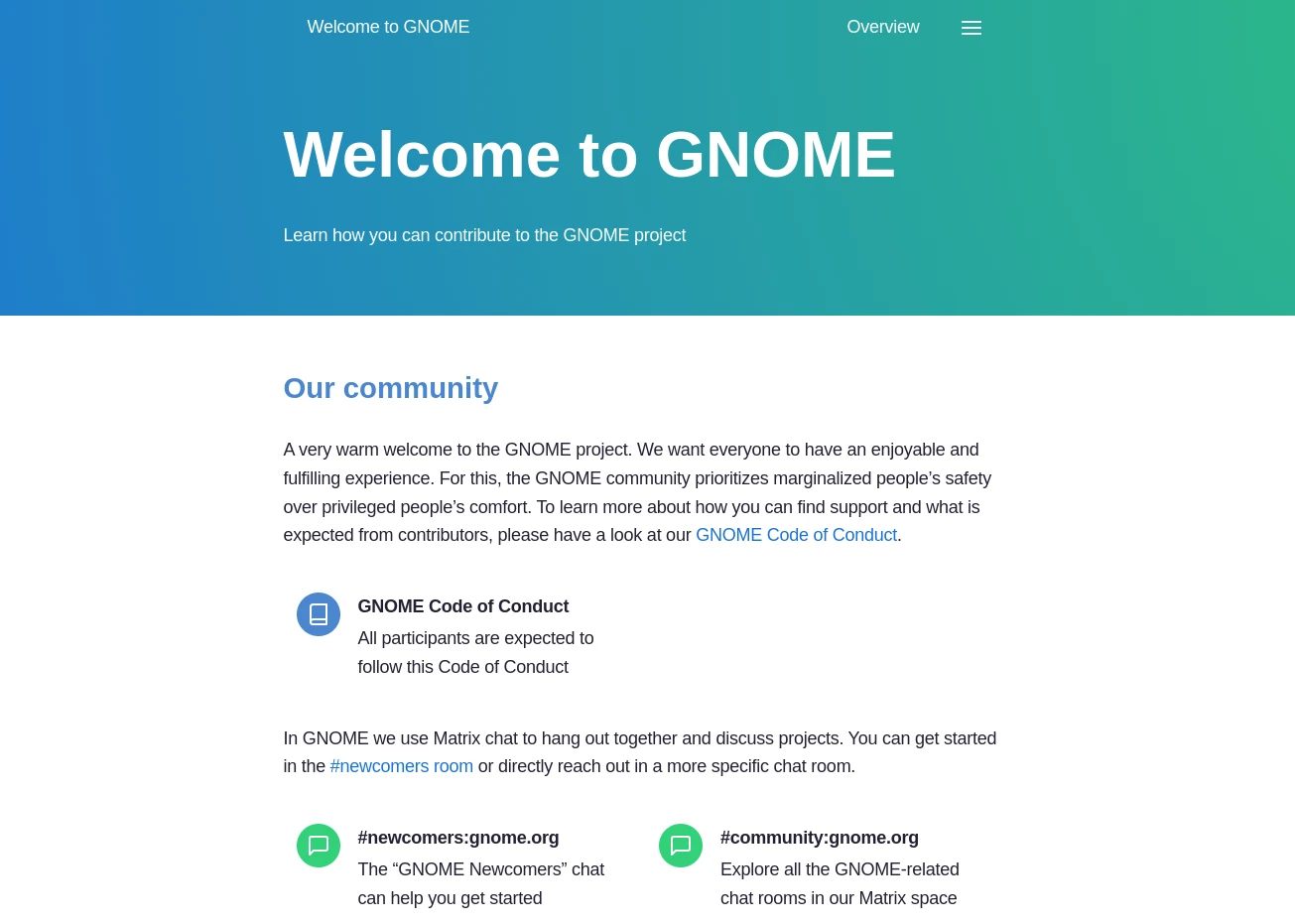
Another factor making GNOME more favored by commercial distributions is ease of maintenance. The GNOME project releases a major version every six months on a fixed schedule, and the entire desktop and SDK are released together, making it convenient for developers to keep up. By comparison, KDE Plasma’s new version schedule is not fixed, and Plasma desktop releases are staggered with KDE Gear releases, making it harder for developers to keep up. Also, the KDE Plasma project is several times more complex than GNOME. The enormous workload overwhelms developers, so commercial Linux distributions prefer the easier-to-maintain GNOME desktop environment.
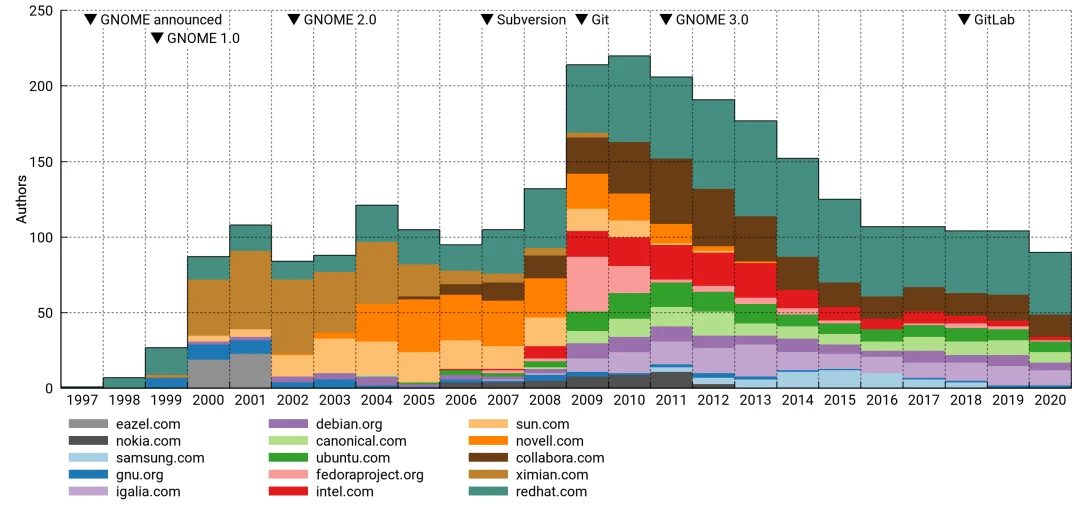
Refer to this 2020 chart, where you can see the top GNOME development contributors are all familiar large companies, although the Debian community’s share is also high. Source
GNOME seems to already be the de facto Linux desktop standard!
On the other hand, KDE is more of a civilian community. Although it has corporate sponsorship, it seems to be the result of developers around the world cooperating with each other. Commercial Linux distributions adopting KDE Plasma are fewer than GNOME, with famous examples only including openSUSE, Kubuntu, SteamOS, and Tuxedo OS. The ancient Mandriva Linux is already dead.
As said above, KDE Plasma’s desktop is relatively more complex than GNOME, so how does such a huge and complicated situation keep the project going?
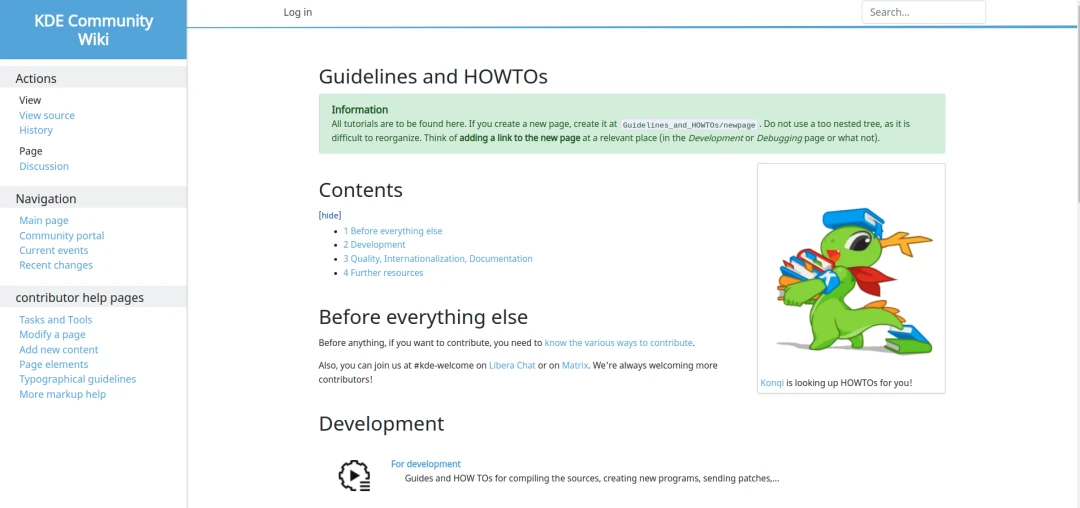
Actually, KDE greatly emphasizes coordination across the global community, keeping the project from becoming very chaotic. Each country has KDE localization teams responsible for translating the interface. The rules, manuals, and documents written by the KDE community are also very detailed, comparable to the development documentation on GNOME’s official website.
The following 2020 chart shows that the number of KDE contributors has increased year by year, many of them new blood. Source
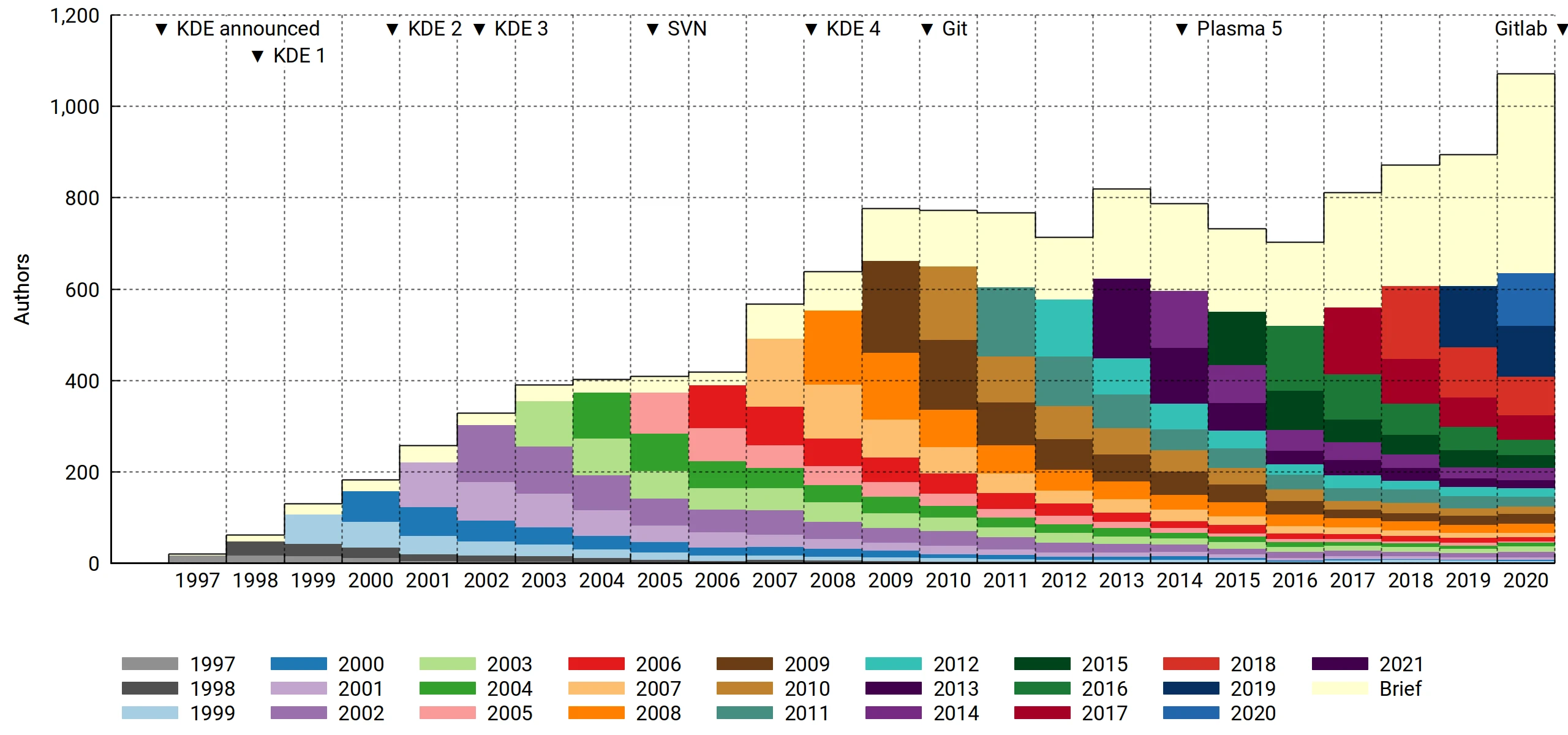
KDE’s contributor base has always been very active, and many developers across major Linux distributions maintain KDE packages. So KDE, like GNOME, is maintained by a large international community. As long as there are enough “eyes” catching bugs, there is no need to worry KDE will become loose sand.
However, attracting commercial companies to invest resources and maintain the KDE Plasma desktop for their own distributions faces a more severe challenge.
2. Stability Comparison #
Regarding desktop stability, I use Arch Linux myself, and both GNOME and KDE Plasma rarely crash. The desktop environment does not sit there doing nothing and crash by itself. Even when running heavy graphical computation, opening virtual machines, or playing large games, these desktops handle things with ease.
Whether desktop environment packages are stable still depends on the efforts of the maintainers of the distribution you use. For example, Ubuntu and Fedora’s KDE Plasma are maintained by large organizations, so bugs are fixed immediately. If it is a too-niche distribution, who is responsible?
However, I must admit that KDE Plasma does have a slightly higher probability of bugs than GNOME, because its desktop components are simply too complex. With so many things, frequent bugs are inevitable. If you want a relatively stable desktop, GNOME is still better.
Let me talk about the transition from X11 to Wayland. GNOME and KDE Plasma both have mature X11 support. Application scaling and multi-monitor support work out of the box, usually without command adjustment.
As for future display protocol “Wayland” support, GNOME 40 led at first, and later KDE Plasma 6 caught up. Some new Wayland features, such as HDR support, color management, and XWayland scaling, were even implemented by KDE Plasma before GNOME, allowing users to experience the latest technologies.
3. Operating Logic Comparison #
GNOME and KDE Plasma have fundamentally different operating logic.
Since GNOME 3, all the way to the latest GNOME 50, its operating logic abandoned traditional desktop design and walked a path different from Windows, macOS, and even many Linux desktops. GNOME defaults to a workspace-centered workflow, emphasizing productivity and getting things done. So its design is clean, with many customization options reduced, and the interface has its own operating logic. You must follow it, my way or highway.
- Related article: Learn how to use GNOME
My understanding is that GNOME wants users to focus, so one workspace should not open too many windows. It wants users to properly plan window management, drag extra windows into workspaces (by default on the right side of the screen, automatically added), and switch through keyboard shortcuts. GNOME has no minimize or maximize buttons by default, so unwanted windows should be closed; do not open a pile of overlapping windows.
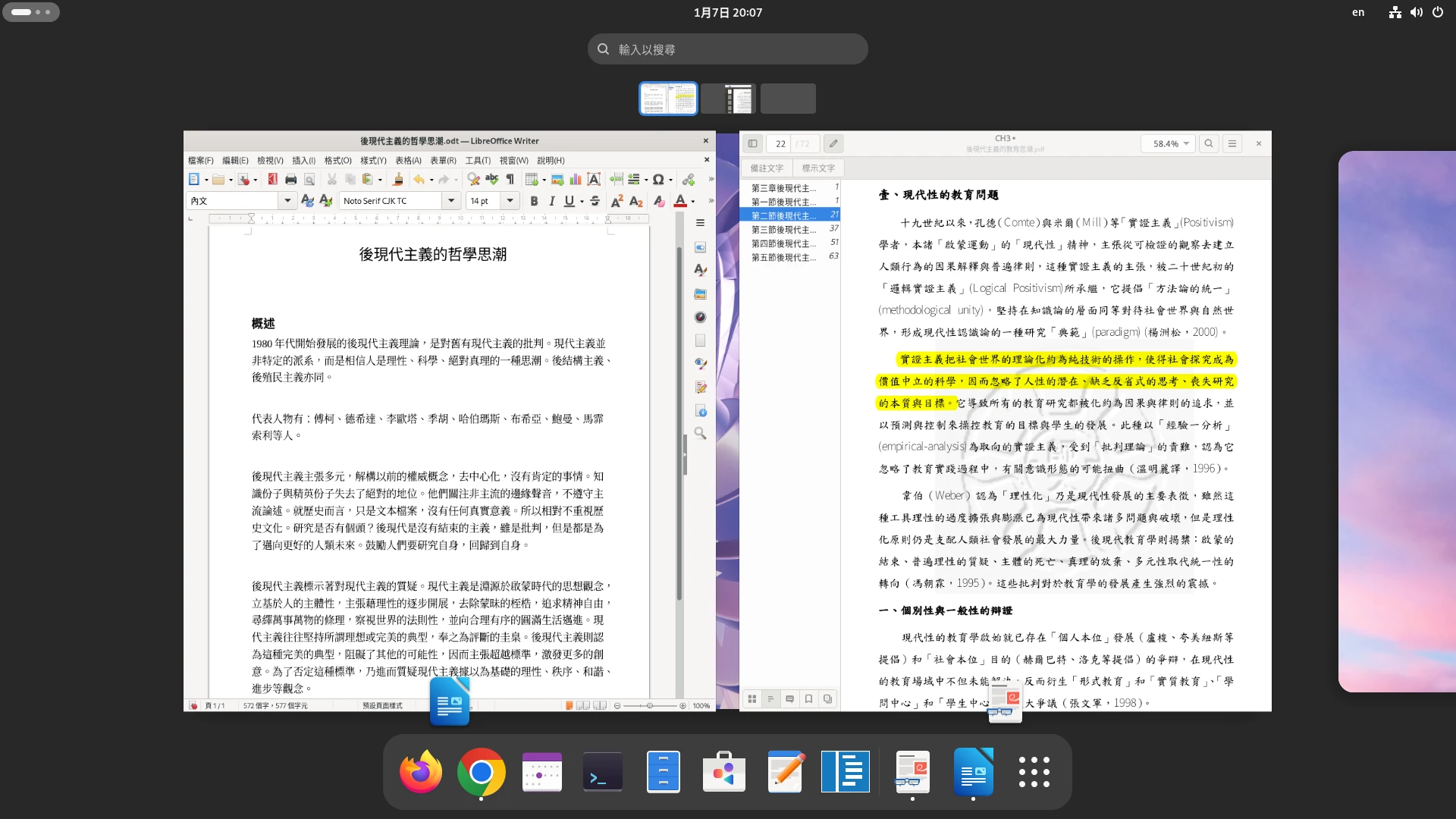
The GNOME desktop is already filled by windows. When you click a window to maximize it, extra elements disappear, leaving only one horizontal bar at the top for displaying time. Under this design logic, it is reasonable that GNOME does not let you put files on the “desktop”, because windows cover the wallpaper anyway!
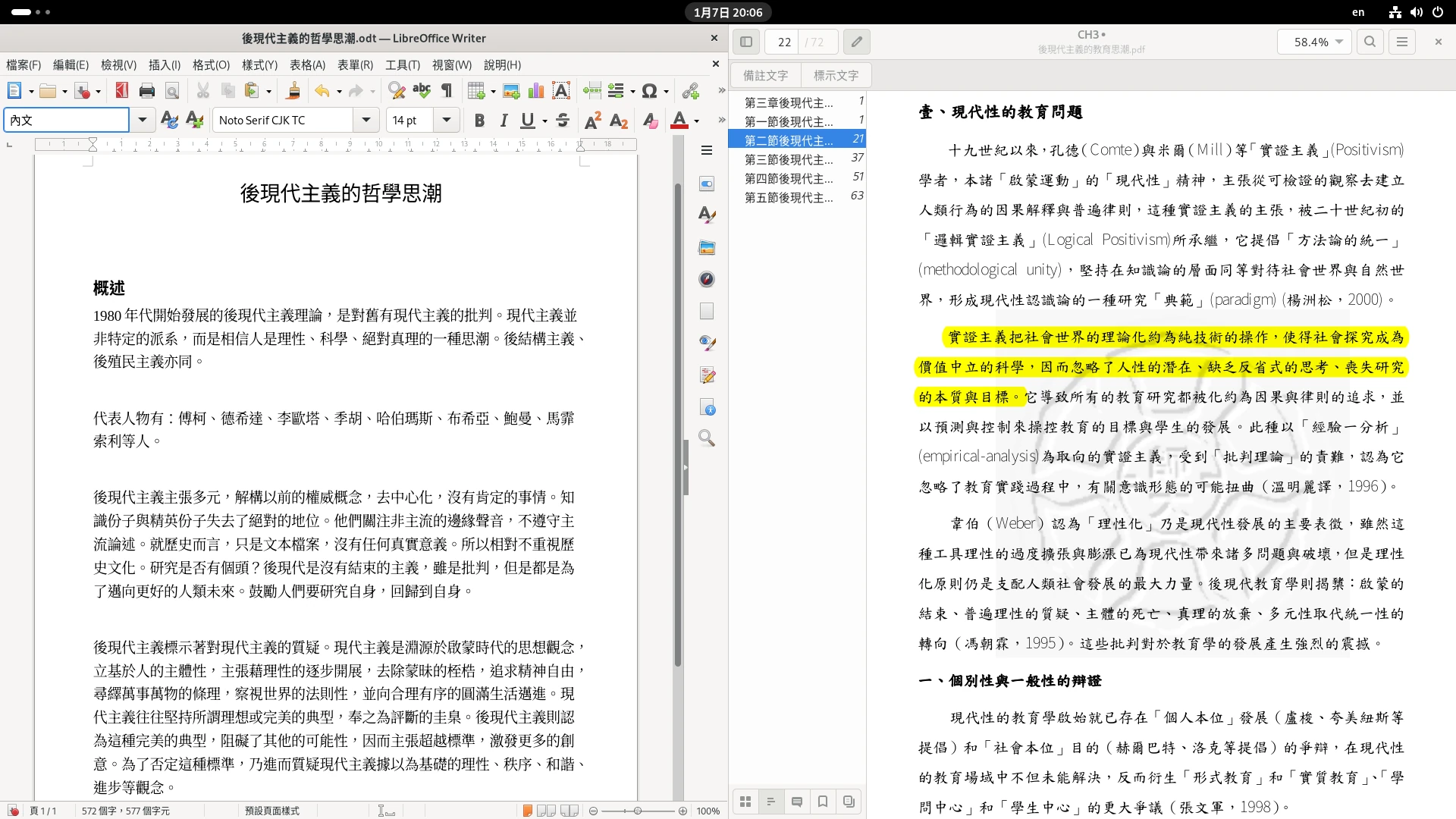
After using GNOME for a long time, you feel GNOME is boring. This is actually not a bad thing, because it gives you less motivation to mess around and more time to spend on work. Although extensions can slightly change the appearance, GNOME by default has little to customize, at most letting you change the wallpaper.
Users accustomed to Windows operation may not adapt to GNOME. They must abandon the old operating logic of opening many windows and switching programs by clicking taskbar icons.
As for KDE Plasma, it has not changed from the past to now. Its default operation is very similar to Windows, with a lower-left start menu, bottom application taskbar, and so on.
After KDE Plasma 5, the modern design prototype was established and inherited by the latest KDE Plasma 6.
But please do not say KDE Plasma copied Windows. Some Windows 10 features actually appeared first in KDE Plasma 5.
The way users interact with the desktop is to click application icons on the taskbar to open them, then start working. If you want multiple overlapping windows and to switch among them, that is not hard. Because there is a taskbar at the bottom that displays icons and thumbnails for all programs.
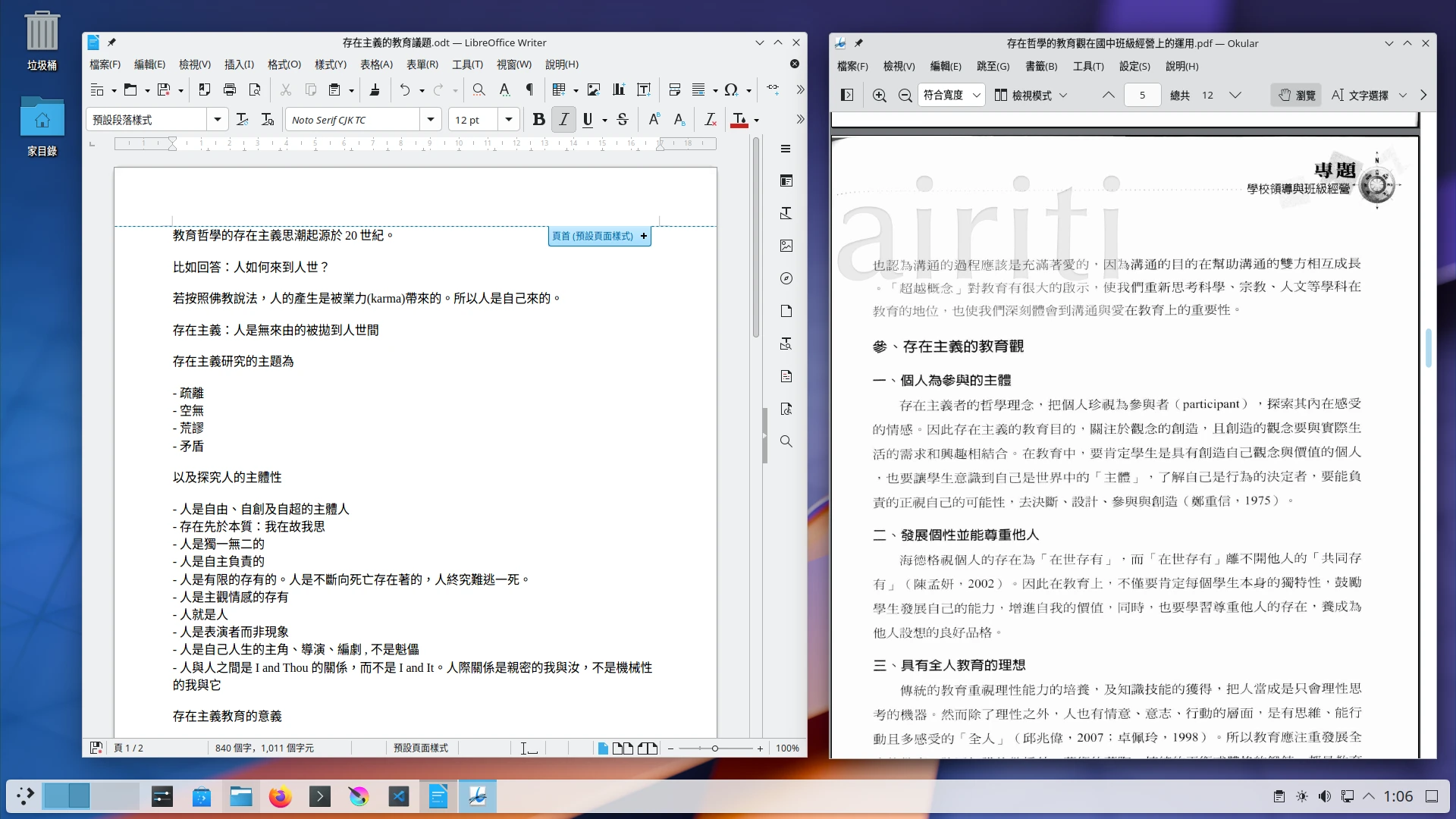
Is that all KDE Plasma can do? Of course not! As mentioned above, GNOME has workspaces, and KDE Plasma certainly has them too, with stronger customization. Move the mouse to the upper-left corner, and you enter overview of all windows. Here you can add virtual workspaces. The more formal term is virtual desktops.
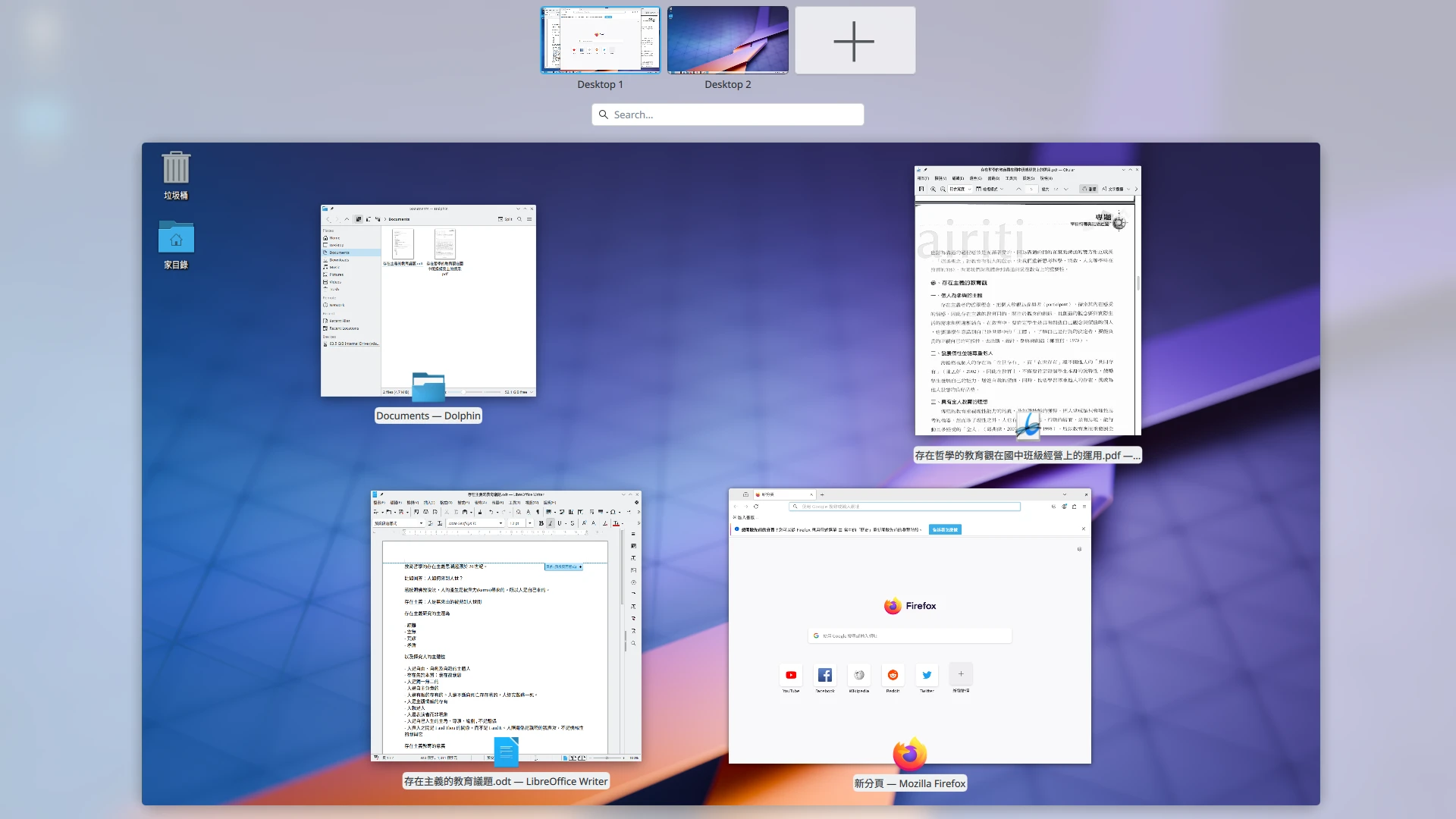
Users can freely add workspaces and place windows however they like. KDE Plasma gives you everything and lets you freely choose the operating mode. Whether you want to keep the default of stuffing windows into one screen, or make good use of workspaces to organize windows like GNOME, it is up to you.
KDE Plasma truly has many features, and everyone can find their own operating logic. Many people operate it with fixed assumptions because it looks like Windows 10, but there are actually more features available. For example, Workspaces correspond to Windows virtual desktops and are somewhat like macOS Mission Control. Clicking the hot corner at the upper-left desktop displays all workspaces, and windows can be dragged among multiple workspaces. For people without dual monitors, it is a good tool for managing complex windows.
KDE Plasma also has something called Activities, awakened by pressing the Windows key + Q. Activities are different from workspaces. The window state inside each activity can be saved. Whenever switching to another activity, programs in the previous activity are suspended and their state saved.
If you dislike all of the above operations, open KDE Plasma panel customization mode, tear apart everything on the taskbar, and place your preferred components yourself!
Therefore, in the KDE Plasma environment, users can freely choose the operating mode they prefer and will not be locked down by a fixed design.
4. Accessory Application Comparison #
The quality of accessory applications largely determines whether a desktop is easy to use. Look at its programs: do they make users feel convenience, or do they merely basically work?
When talking about accessory applications, we must talk about the topic of “BLOATED”, a word the Linux community often uses to criticize Windows systems: system bloat.
GNOME and KDE Plasma at this moment:

Let me tell you, Arch Linux has “package group” for installing related packages of that desktop environment all at once, commonly called the full suite, the kind that includes everything from browsers to small games.
The full suite can be analogized as “accessory applications.” Under the condition of installing the full suite, GNOME and KDE Plasma are equally bloated. Package size is 3~5GB, and RAM usage at boot is at least 1GB.
If forced to compare, the KDE Plasma desktop has many more dependency packages than GNOME, because some distributions’ KDE full suites even include a periodic table, plus some vocabulary memorization tools invented by KDE, making it take a lot of time to remove KDE later.
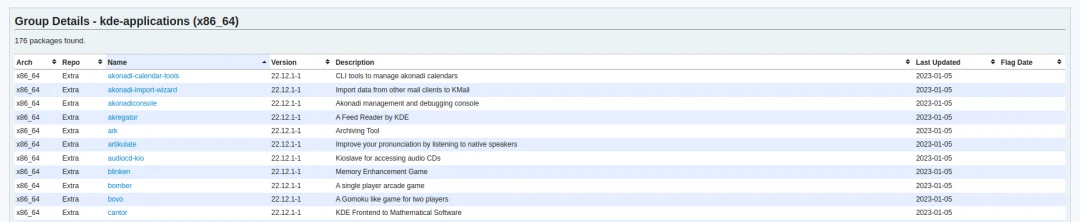
Although Arch Linux allows the desktop environment and accessory applications to be installed separately, letting users avoid installing too many things, installing these accessory applications is not bad. They let users operate conveniently and handle daily tasks without installing extra software.
If comparing application functionality, KDE applications are usually more feature-rich, while GNOME applications are generally very “lean.” To put it bluntly, GNOME programs feel like reference implementations, with only very basic functions; any random alternative can wipe the floor with them. KDE has fewer such problems. Many programs developed by KDE are very useful and remain practical even in other desktop environments.
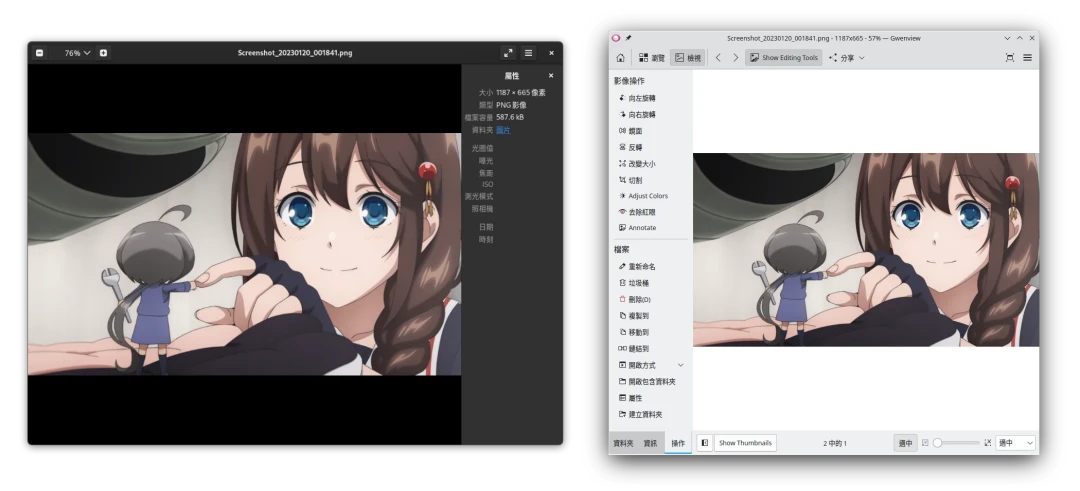
For example, the Eye of Gnome image viewer versus KDE Gwenview. Gwenview’s image editing features are much more convenient; sometimes you can fix images without even opening GIMP. What about GNOME? It does not even have the function to rotate an image and save it! Only in the latest GNOME 50 did the image editor improve slightly.
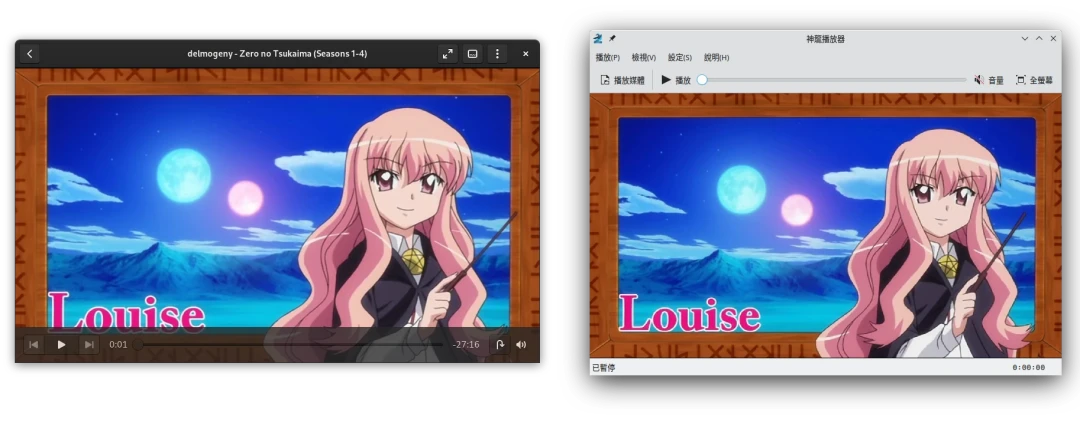
Video player Gnome Totem versus KDE Dragon Player… actually neither is good.
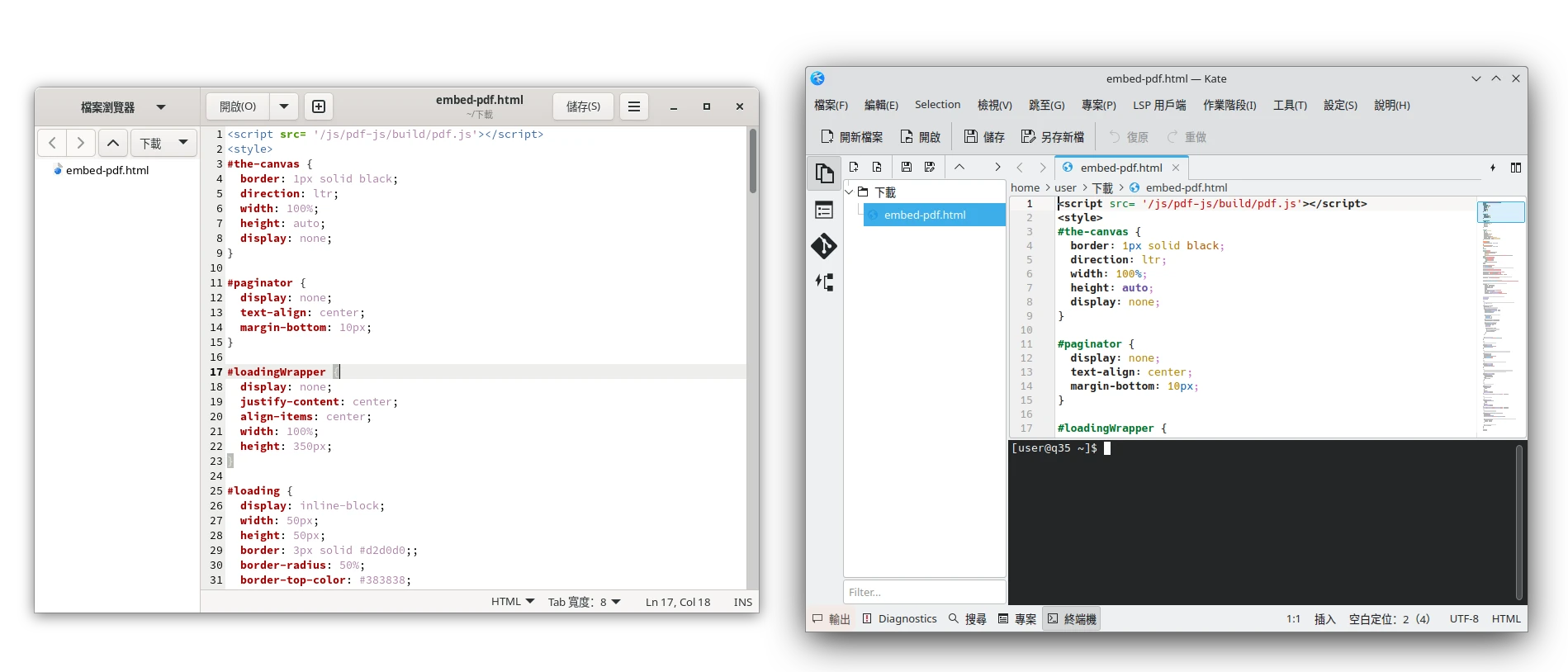
Text editor GNOME Gedit versus KDE Kate. Kate is slightly better because it integrates directory search and Git editing features.
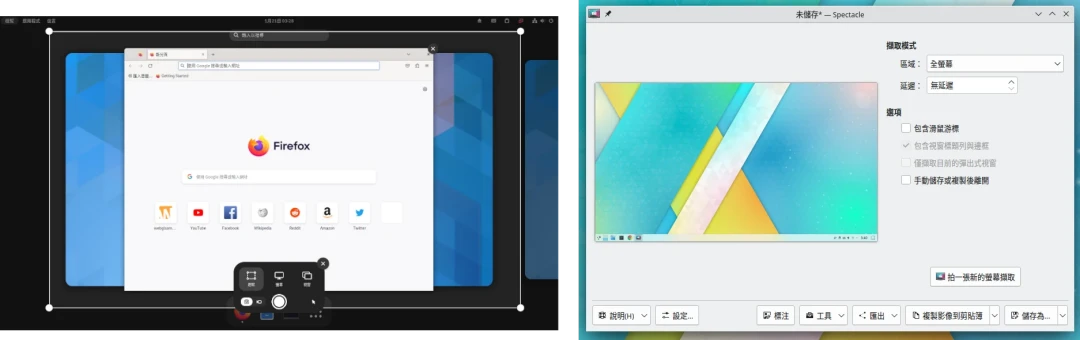
GNOME Screenshot versus KDE Spectacle. The former is completely beaten by the latter. Spectacle can perform delayed screenshots, annotation, post-screenshot editing, copying to clipboard, and other operations. GNOME simply cannot achieve such complex operations.
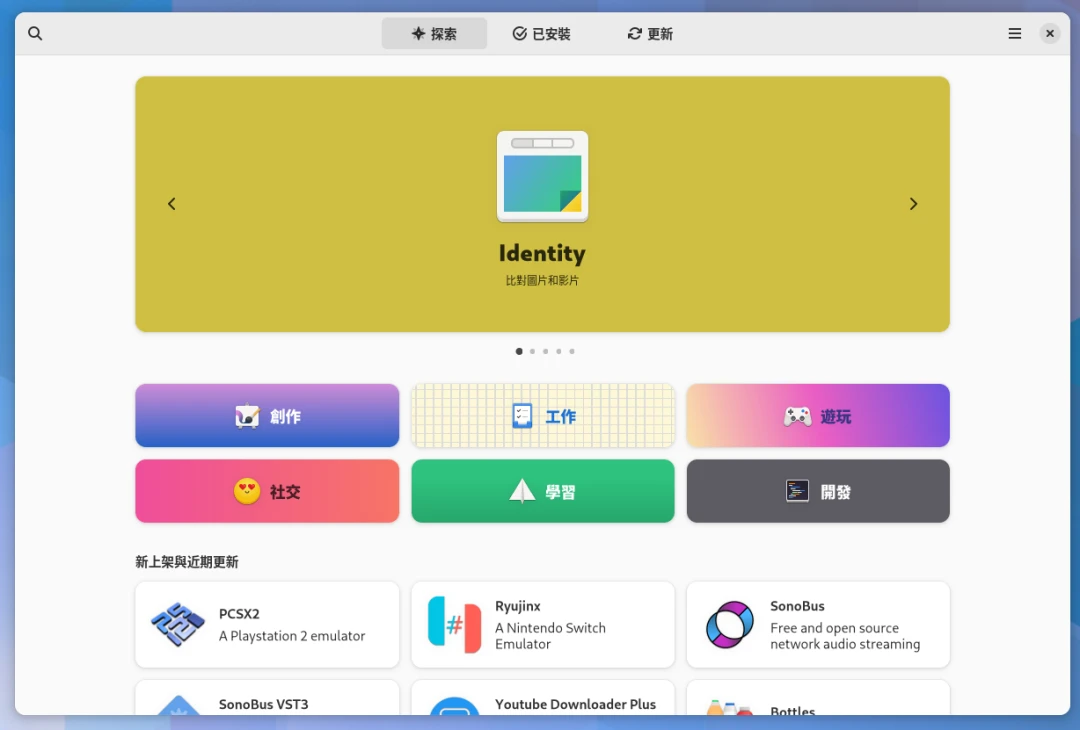
Finally, software store comparison. What modern person does not hope Linux systems can install applications by tapping around like a phone, rather than installing piles of packages with commands? Fortunately, now both GNOME and KDE Plasma integrate package managers into application stores, letting users conveniently download programs. But even among application stores, different desktops provide different experiences.
GNOME Software’s interface looks slightly better than KDE Discover.
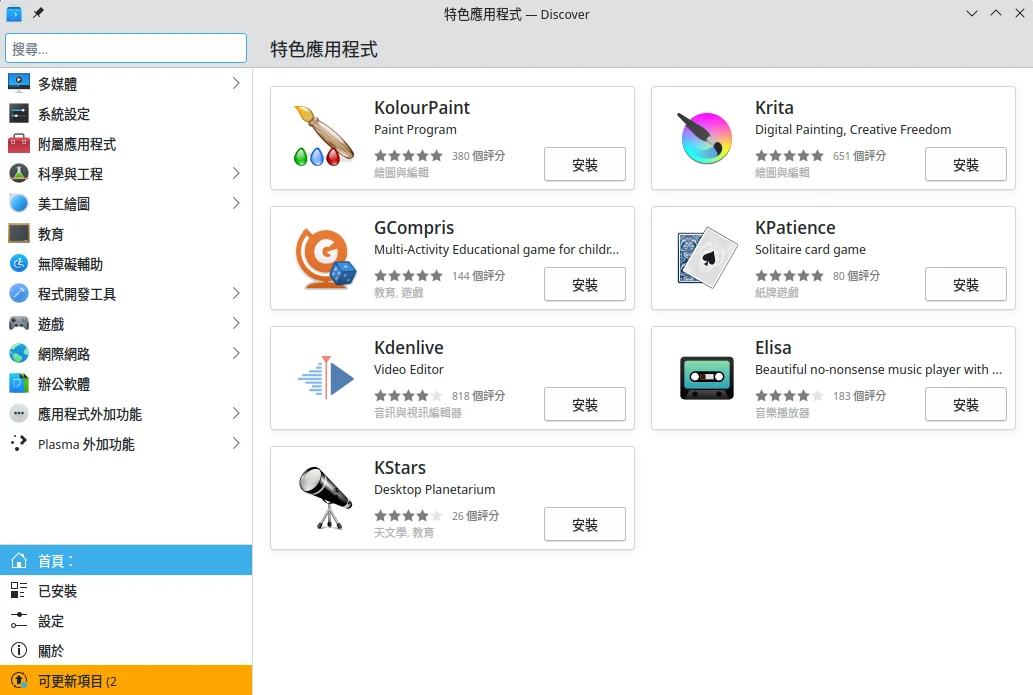
KDE Discover looks like a software catalog rather than a store.
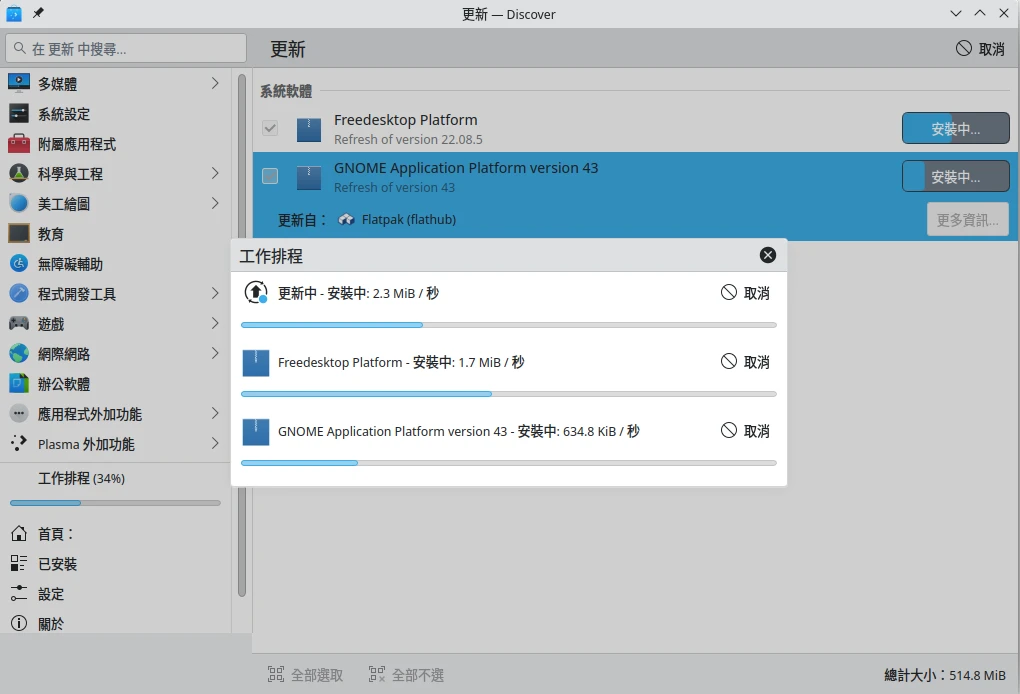
…GNOME Software only has a slightly nicer interface. GNOME Software has no clear progress bar when downloading software, and clicking in even shows it is not installing, easily making people mistakenly think it is stuck. The whole thing responds slowly.
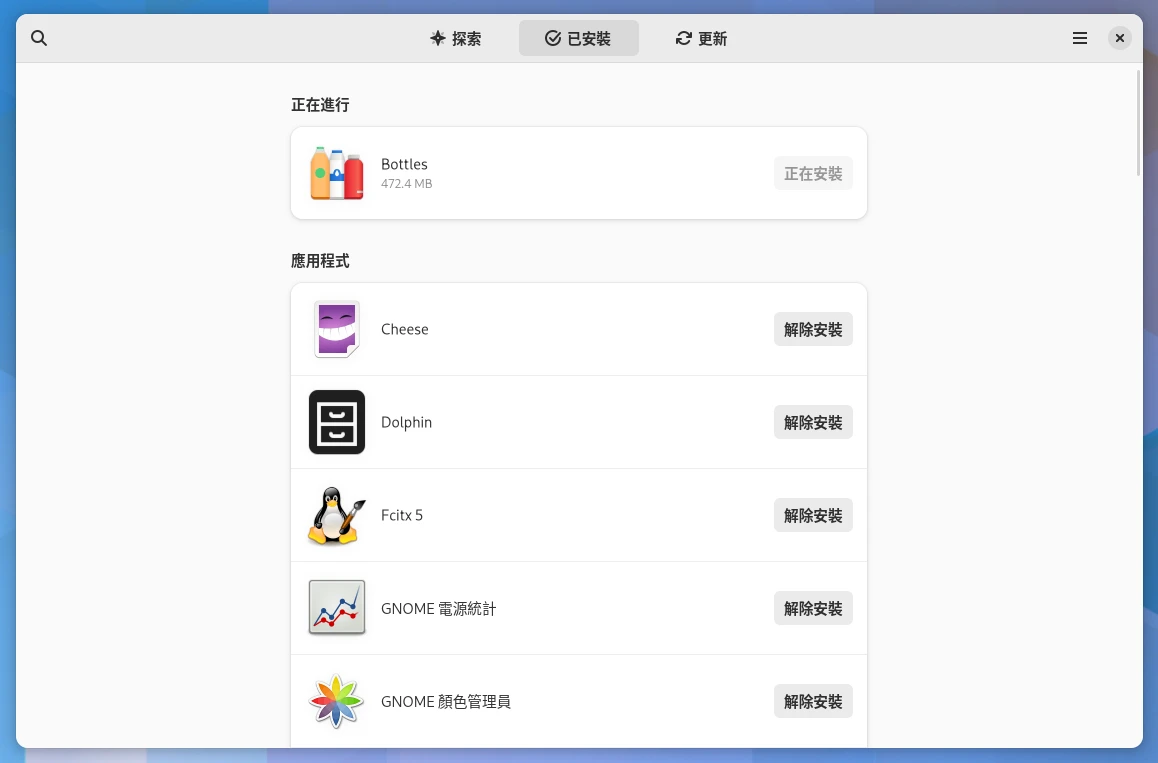
Although KDE Discover has a full engineer style, it does give people the reassurance of knowing current progress. Considering speed and practicality, KDE Discover wins.
Actually, for many programs I do not use the accessory applications from the desktop environment’s full suite. I find alternatives separately, such as VLC and MPV for video playback, Flameshot for screenshots, OBS Studio for screen recording, and so on. There is no need to rely entirely on programs provided by the desktop environment. But these basic desktop environment programs do affect user experience. Why do some desktop environments make their own programs so crude, forcing users to find alternatives?
There is also the important comparison of file manager interfaces, which is the topic of the next section.
5. File Manager Interface Comparison #
The file manager is an important part of a desktop environment. Whether handling office documents or the great treasure inside a hard drive, it is used every day, so choose one that feels smooth to use.
GNOME’s default file manager is called Nautilus, and KDE’s is called Dolphin.
Nautilus includes basic file browsing and remote drive mounting features.
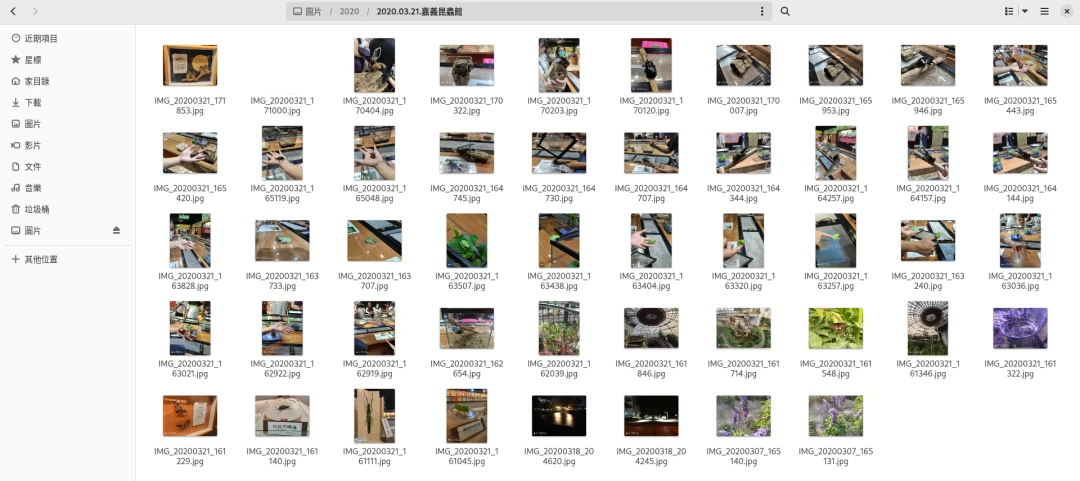
Dolphin has all of these, and is stronger.
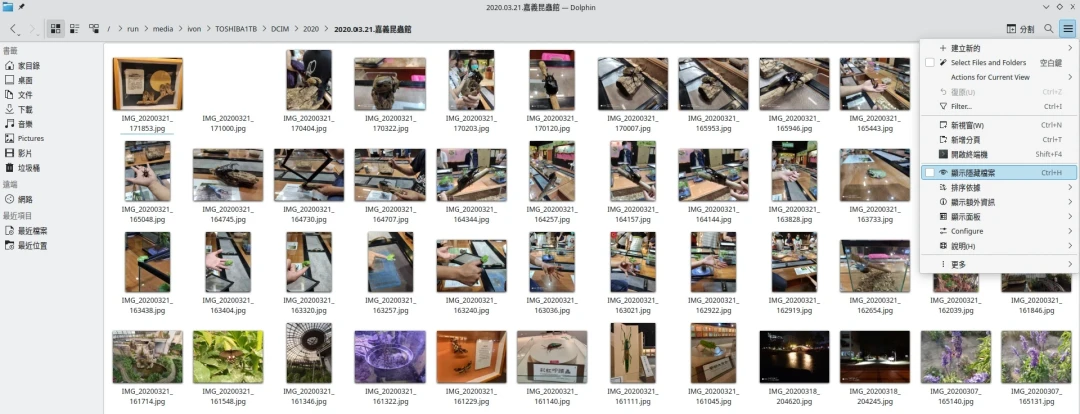
For example, only Dolphin can display the file directory structure, with beauty surpassing the tree command.
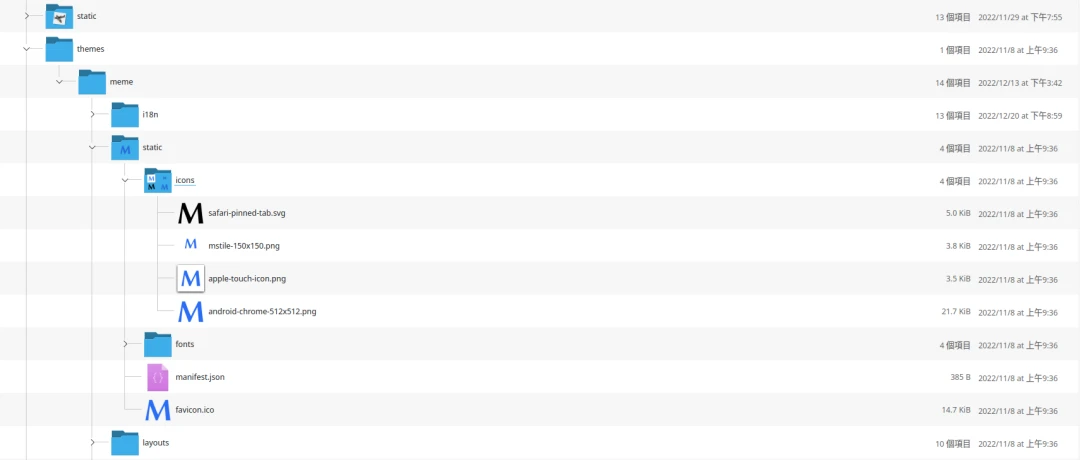
In Dolphin, you can also open a left-right split view in one window and view the contents of two directories at once. Dolphin can also integrate arbitrary third-party search programs to search hard drive directories more efficiently.
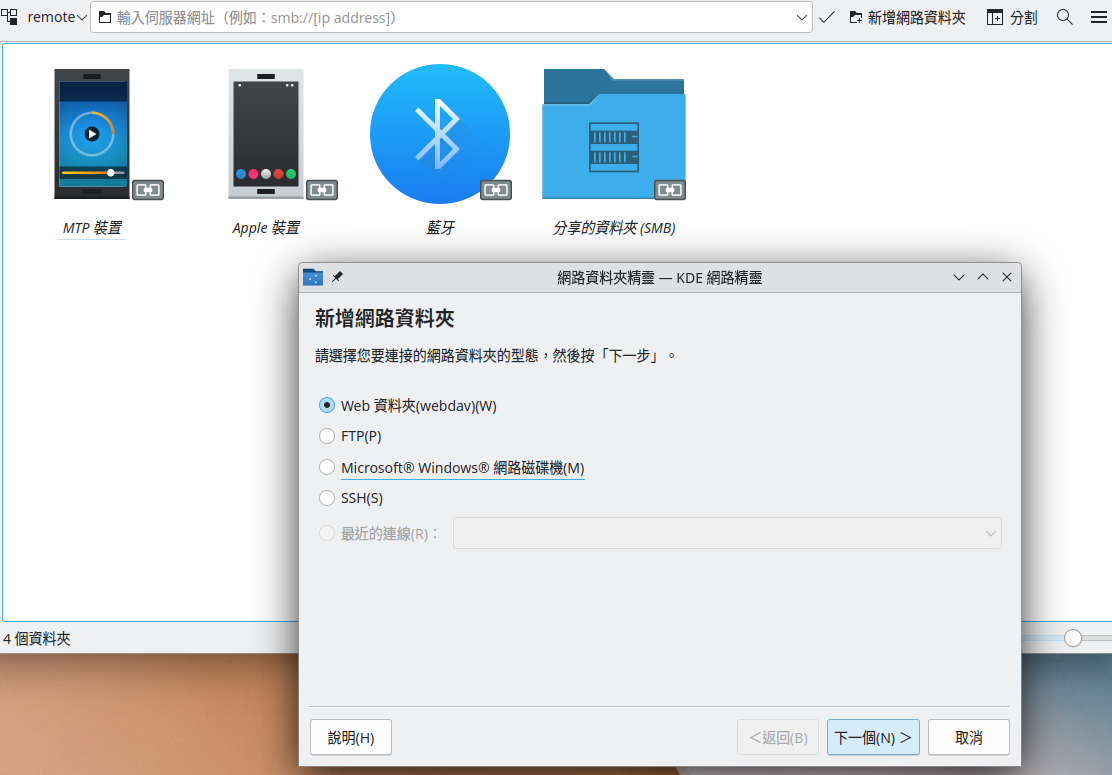
KDE Dolphin does not hide the remote drive mounting feature inside the “address” field, but has considerate graphical guided setup.
In terms of file chooser, Dolphin is also easier to use.
GTK’s file chooser only added thumbnail functionality in recent years, barely satisfactory.
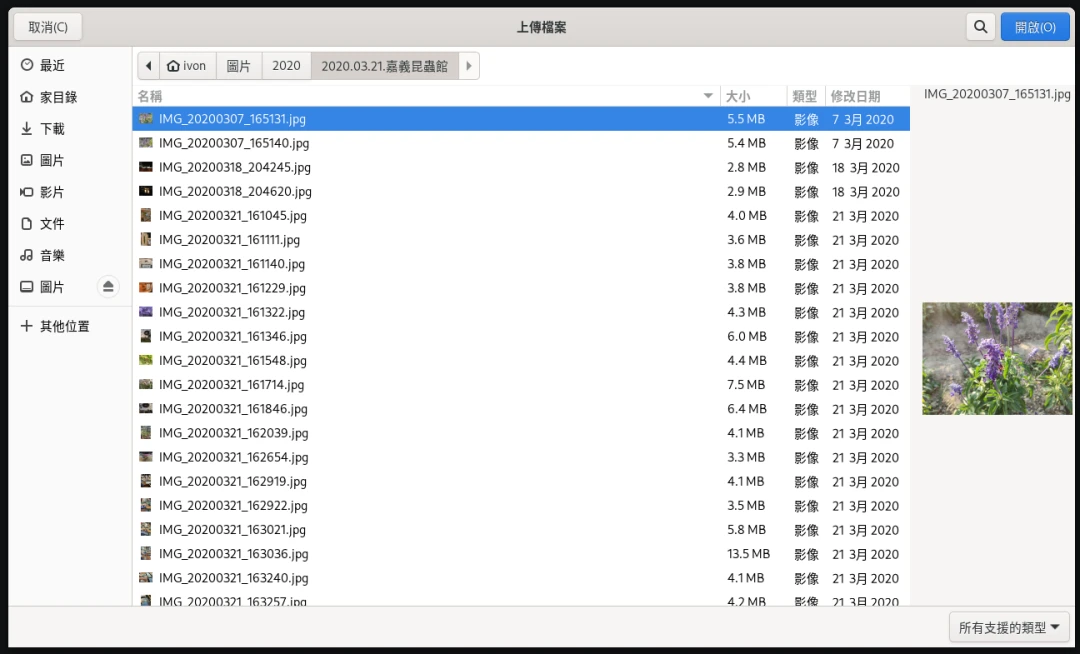
Yet it still is not as useful as Dolphin. Dolphin can delete and rename files in real time inside the file selection dialog.
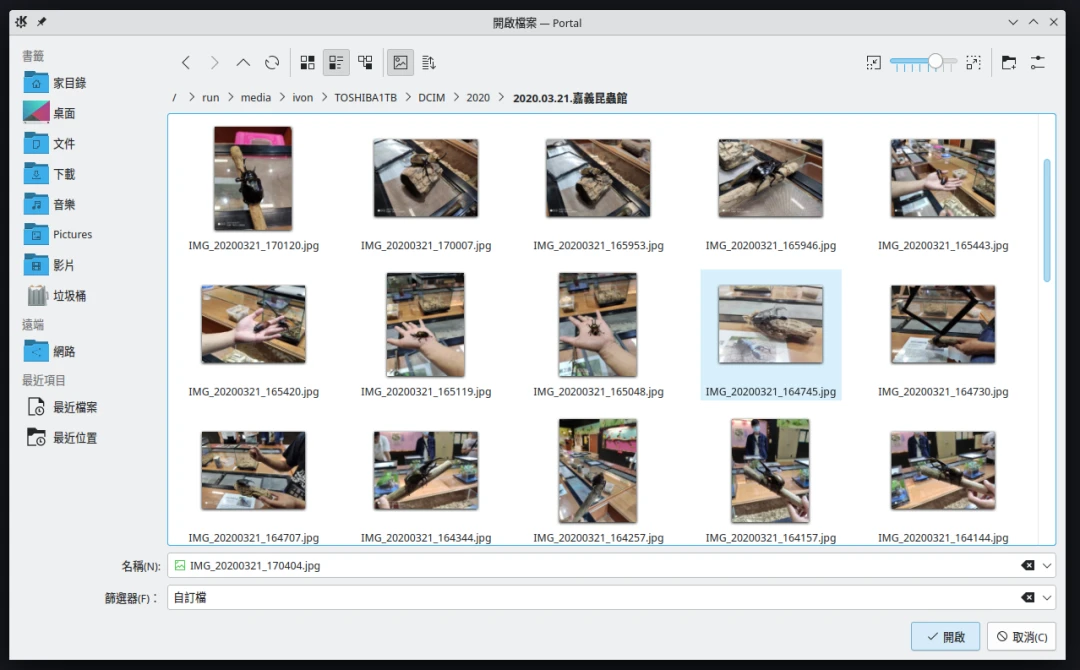
Even though Linux can freely switch file managers through the xdg-mime command or XDG Desktop Portal, it is often coupled to the desktop environment. That means when an application shows a file chooser, it may call GTK rather than Dolphin. Firefox is somewhat better; you can use the environment variable GTK_USE_PORTAL=1 to try using Dolphin as the default file chooser, but other applications are not necessarily like this. Some are hard-coded and do not follow XDG specifications.
The operating habits of applications under one desktop environment are hard to move to another environment. More often, after using them, it is a matter of integration and feeling. GNOME Nautilus is not suitable for operation in KDE Plasma, and vice versa; KDE Dolphin and GNOME do not fit each other.
6. Customization Comparison #
GNOME lacks many functions a desktop should have. They say this makes operation elegant, but in reality it destroys productivity.
I am not the kind of r/unixporn user who likes extreme beautification, cranking out a desktop from scratch, and highly customizing every component. I just sometimes want to add small tools, only to find GNOME’s steps are very troublesome and require installing extensions.
As shown below, GNOME’s application list is made like a phone, and once there are many programs, it becomes hard to find them.
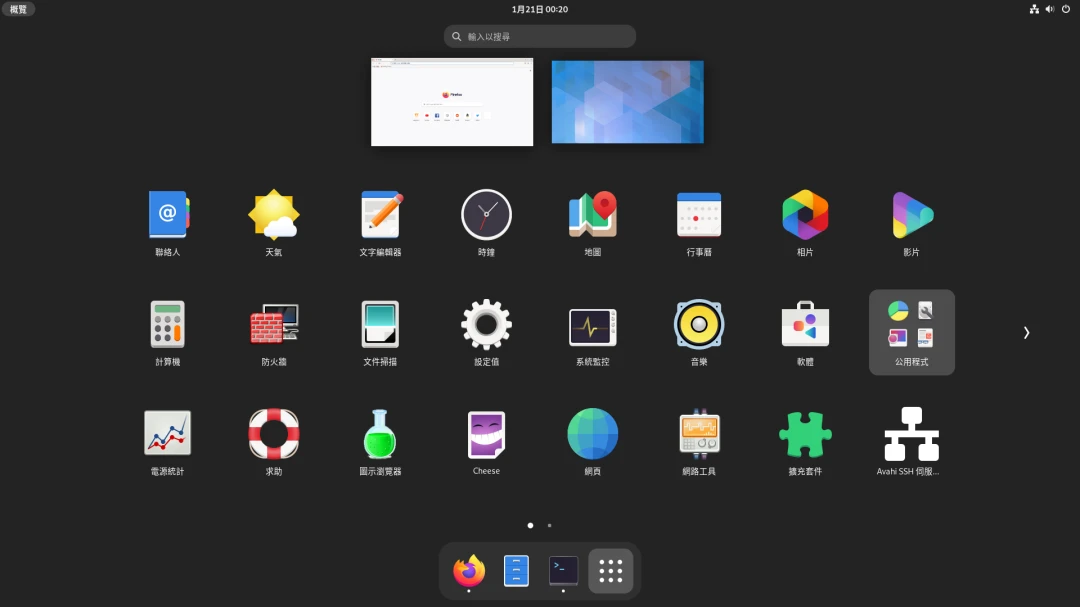
Clean default GNOME with no extensions is really unusable for me. I have no objection to getting used to windows having no minimize/maximize buttons, or to a workspace-centered mode. I have tried a workspace-centered workflow, but default GNOME has too few functions on screen.
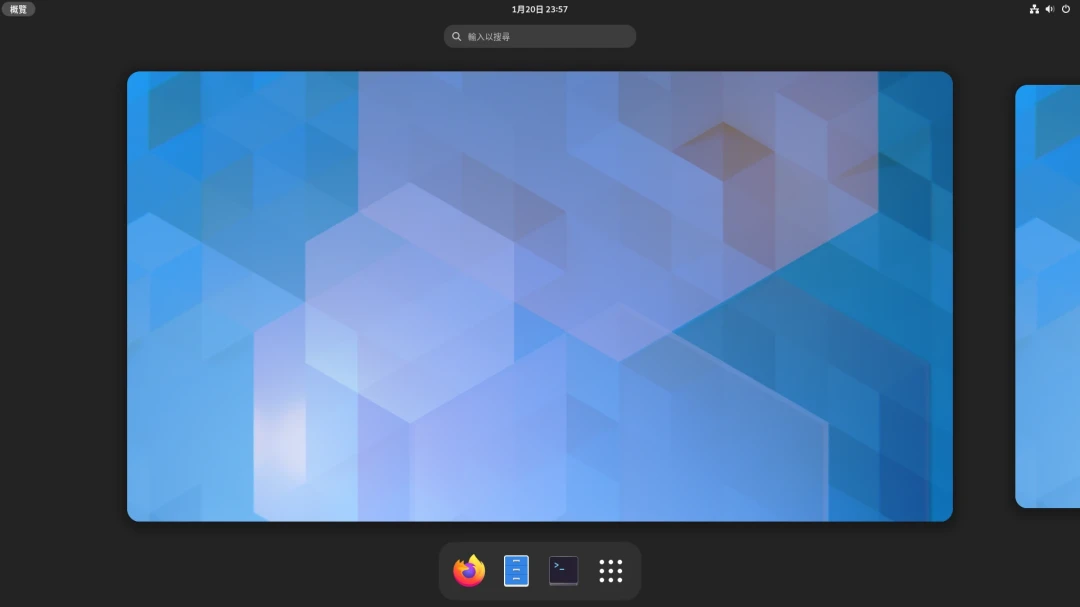
Usually I open Extension Manager to grab some extensions and make it like this before I can use it. For example, I enable the application category menu in the upper-left corner to solve the problem of applications being hard to find, install the input method indicator in the upper-right corner for convenient Fcitx5 simplified/traditional output switching, and add back the “desktop shortcut” feature.
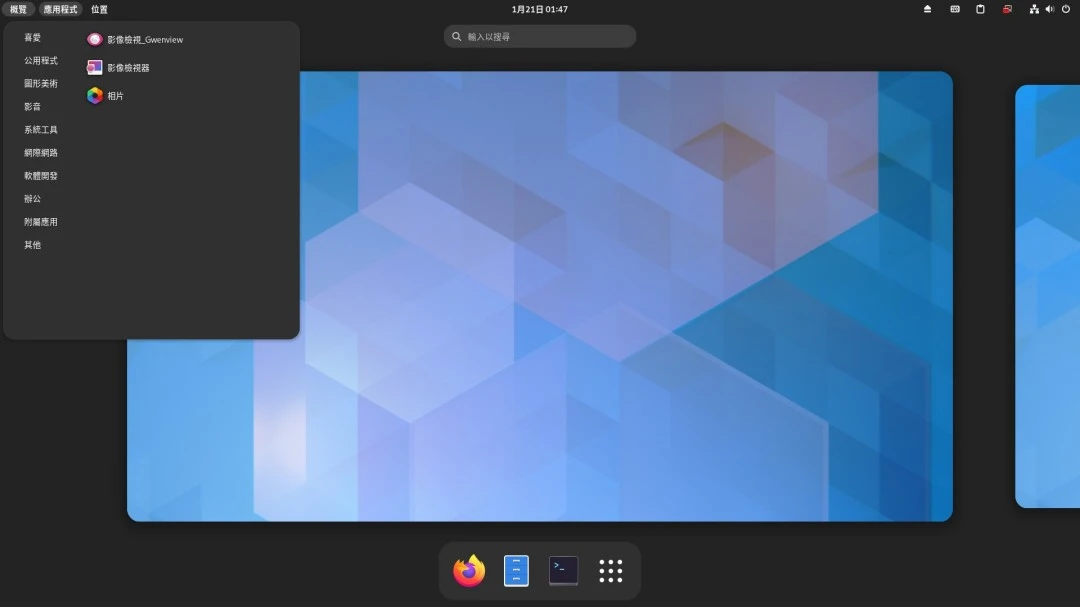
If an operation cannot be solved by extensions, then usually I have to type commands.
Since we are already making a graphical environment, it should conveniently let people interact with the system and elegantly adjust system settings with a GUI, not give you an interface stripped down to the bone where even adjusting a simple thing requires commands.
By comparison, KDE does not require installing piles of miscellaneous extensions. The built-in things are enough to play with, and you can place desktop components however you like. Every element you see on screen can be split, combined, and arranged freely into the look you want.
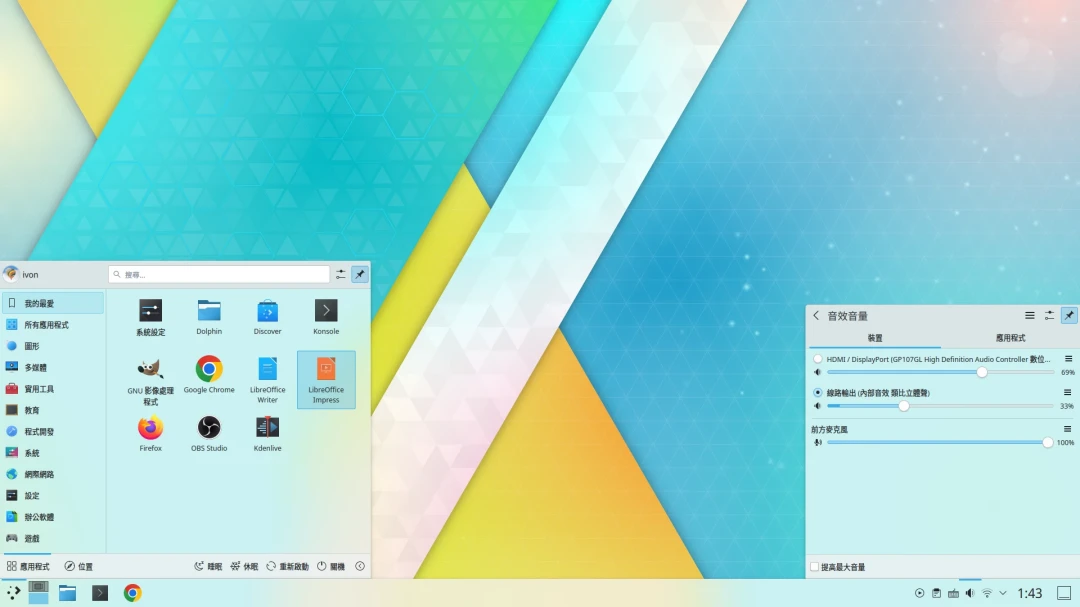
KDE’s system settings can adjust many things. It has turned many command-line things into graphical ones, even integrating a firewall. Even if you mess things up, click restore defaults.
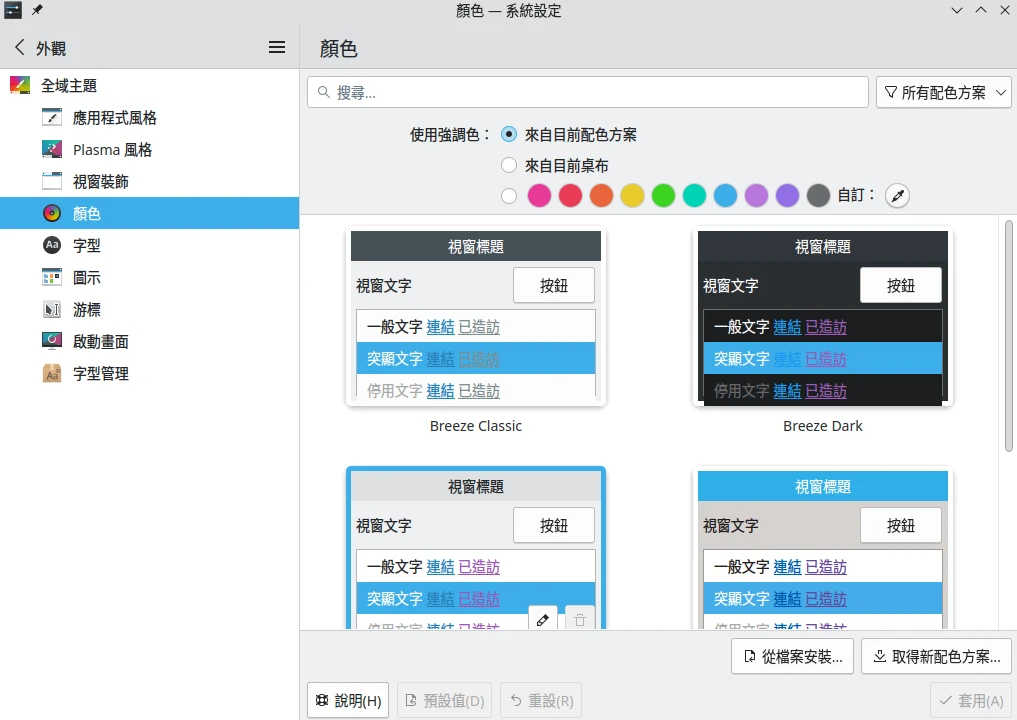
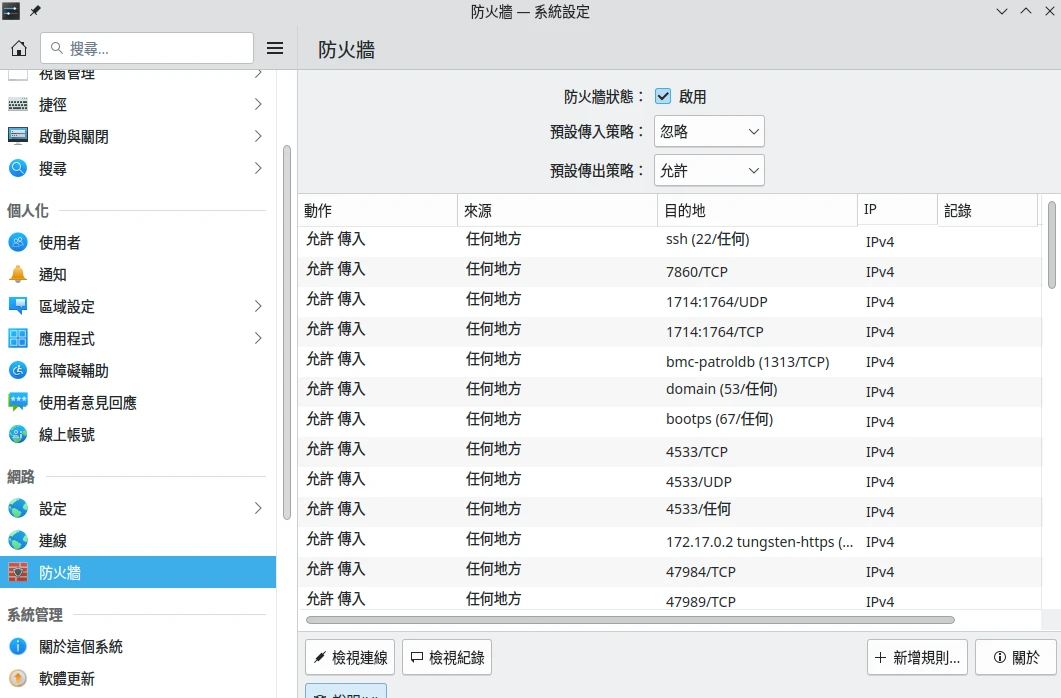
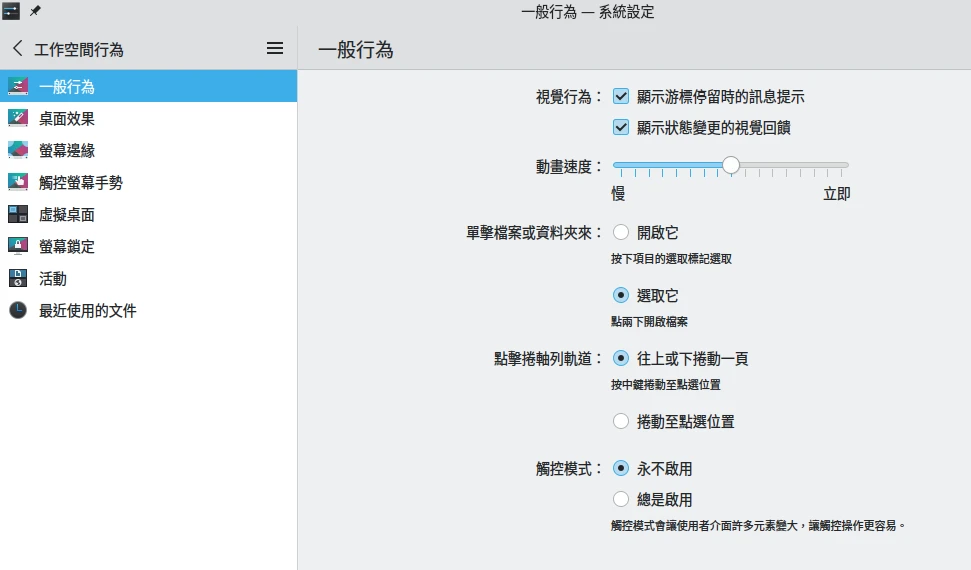
Do not see KDE’s many options and assume it is complicated. Actually, ordinary users do not need to adjust anything after entering the desktop; the defaults are already very usable.
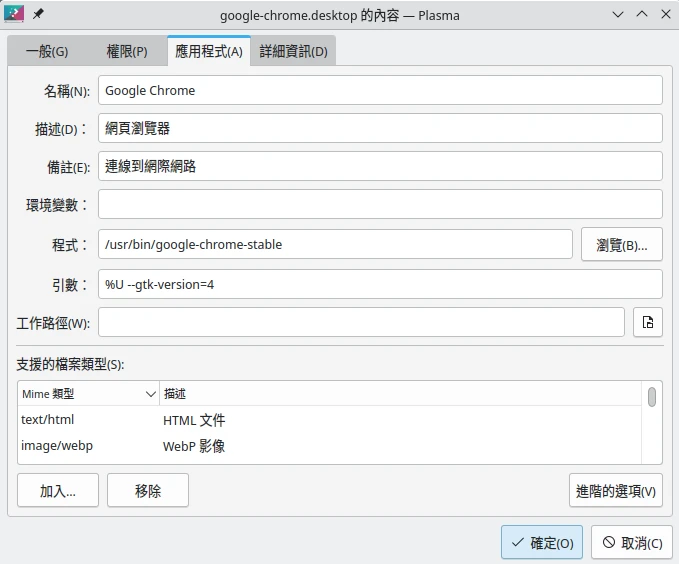
In addition, GNOME does not have KDE’s function where right-clicking an application icon lets you quickly edit application launch options.
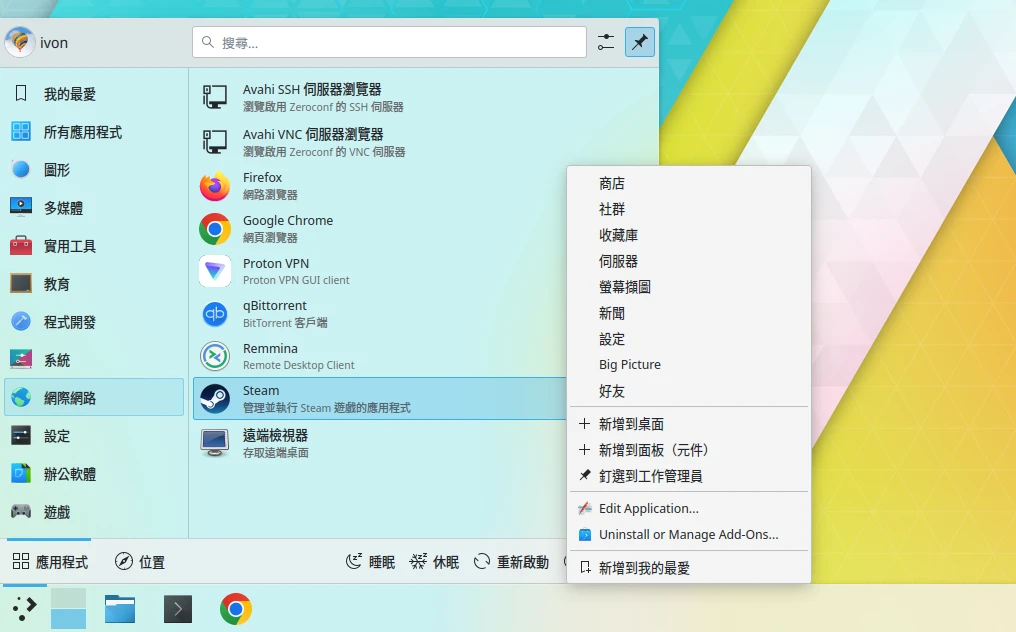
This function is useful for finding an application’s installation location, and extra launch parameters can also be added there. In GNOME, you have to use the command line to edit desktop entry files.
Installing themes and widgets in KDE is not hard either. KDE adds “one-click theme download” functions throughout the system, unlike GNOME where you must manually extract themes into specified locations.
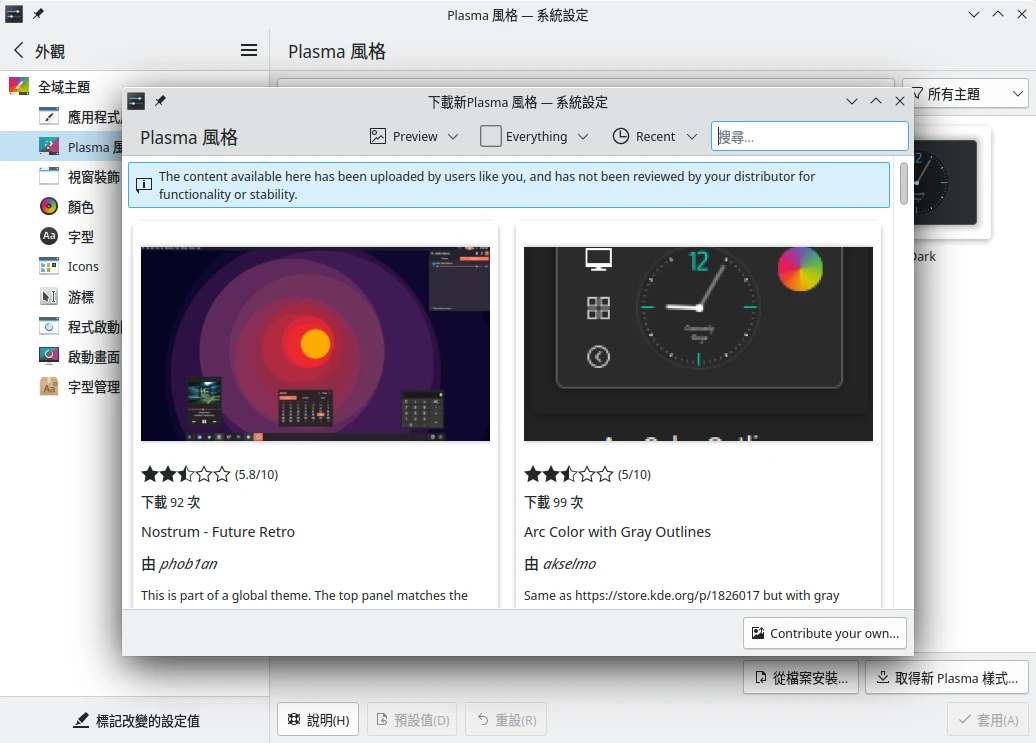
KDE will not stop you from tearing apart all desktop taskbar components and installing another Dock. You can even make a dynamic wallpaper engine. Its freedom is higher.
However, the consensus is that I do not like putting things on the desktop. This is true for both KDE and GNOME, so I do not place desktop widgets.
GNOME’s design is actually very suitable for touch devices, with large icons, gesture support, and the like. Tablets or phones should work well with it. But if viewed as a traditional desktop computer, I still prefer KDE’s way of use.
7. GTK Is Really Too Ugly Compared With QT #
Aesthetics: this is an extremely subjective section. Some people think GNOME’s design is simple and consistent, better looking than KDE. But I do not think GNOME’s design is that perfect either.
GNOME’s accessory applications mostly use GTK for development. Before GTK 3, they had a somewhat skeuomorphic style; after GTK 4, they became flat.
KDE uses QT, with a default theme called Breeze, fully flattening after QT5.
GNOME’s default GTK theme is called Adwaita. In dark mode it is not bad, but the white mode is really not good-looking. Ubuntu’s modified Yaru theme is barely acceptable; PopOS’s developed flat style is ugly; elementaryOS insists on moving toward MacOS; ZorinOS goes in the direction of Windows, no need to elaborate.
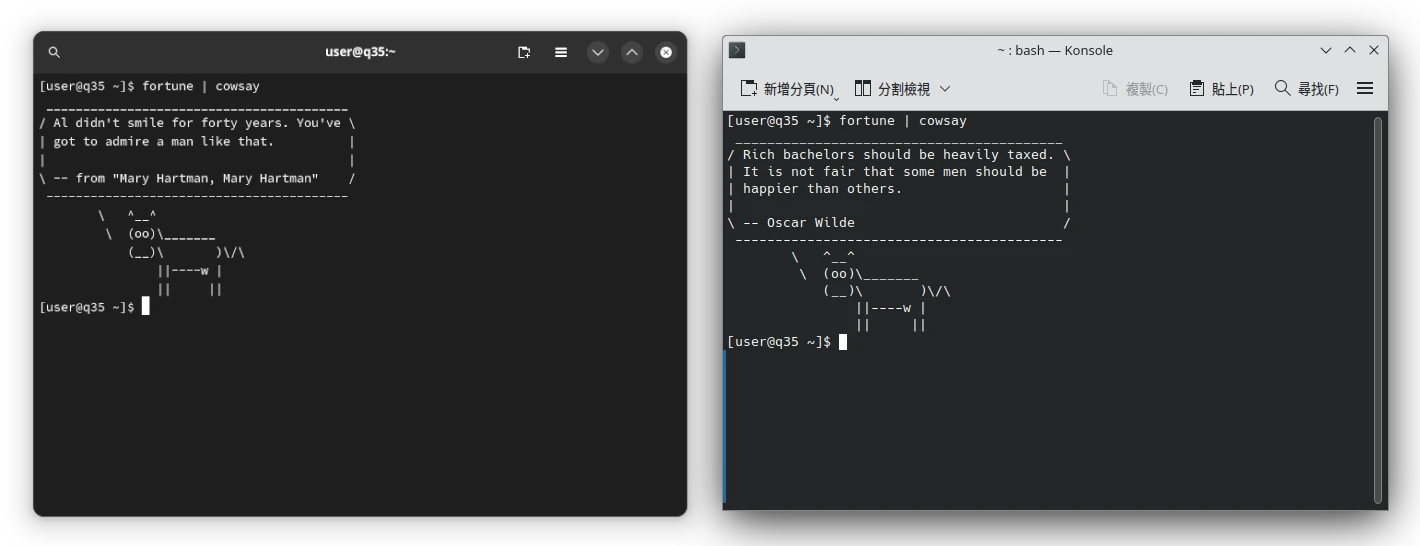
I can better accept the style of applications written with the latest GTK 4 in GNOME. Its flat style like QT is good-looking. For example, this new GNOME terminal looks a bit better than KDE Konsole.
But a pile of GTK applications still use old GTK 3, such as Firefox. Refer to the comparison below between GTK and QT themes, and you will know how ugly it is.
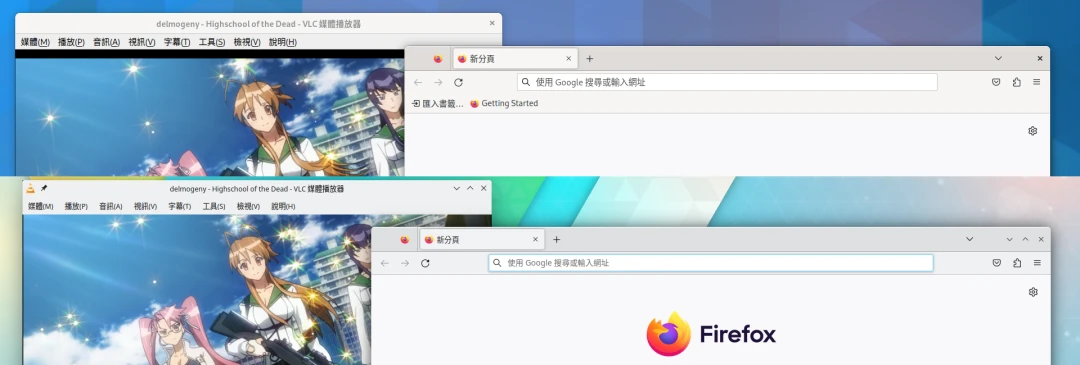
There are also compatibility issues. QT applications look normal in KDE, but become very ugly in GNOME. This is one factor preventing me from using GNOME. By comparison, KDE has better tolerance for GTK programs, and GTK gracefully converts to a QT-style theme.
As shown, QT applications under GNOME are turned into GTK style, and looking closely makes them uglier.
By comparison, GTK applications under KDE look natural, and GTK automatically becomes a QT-style theme. Old GTK 3 applications are not that hard to look at either.
Then why not just change icons? GNOME also supports changing icons and themes. Honestly, whether GNOME uses Breeze icons or KDE uses Adwaita icons, both are mismatched combinations, so I will not do that.
A desktop environment should have its own unique aesthetic, rather than requiring a pile of themes installed later for beautification. Both GNOME and KDE have achieved their own aesthetics; I just prefer KDE’s style more.
8. Conclusion #
Overall, using an inappropriate analogy, KDE operation is closer to Windows, with many functions and higher interface customization.
GNOME operation is closer to macOS, with unified application style and a more minimalist interface.
I think no matter how GNOME emphasizes being “simple and easy to use”, it still is not as “convenient and powerful” as KDE.
Linux users have the freedom to choose. I prefer KDE simply because it better matches my workflow and habits. GNOME and KDE are not in a life-or-death competitive relationship; they simply have their own target users. The two should also learn from each other, develop unified standards, and improve the Linux desktop environment ecosystem.
Appendix: Linux Distributions With KDE Desktop #
Referencing information from the KDE official Wiki, the following Linux distributions default to the KDE desktop:
- Kubuntu (KDE desktop + Ubuntu LTS packages, supported by a commercial company, slower updates but stable)
- KDE Neon (latest KDE desktop + Ubuntu LTS packages, maintained by the KDE development team, suitable for users who want to try the latest features and are not afraid of bugs)
- KDE Linux (immutable distro, the KDE development team’s work facing the future)
- Tuxedo OS (a distribution made specifically for TUXEDO Computers, similar to KDE Neon, but with a dedicated team ensuring desktop stability)
- Fedora KDE Spin
- Fedora Kinoite
- Bluefin Aurora
- Bazzite
- SteamOS
- CachyOS
For the following Linux distributions, you need to install the KDE desktop yourself, or the ISO provided on the official website homepage does not use KDE by default:
- Debian
- Ubuntu
- Fedora
- openSUSE
- Arch Linux
- Manjaro
- Gentoo