This article demonstrates how to add your preferred Linux distribution to the proot-distro tool in Android Termux.
Using Ubuntu as an example, we will install the older Ubunut 22.04 LTS proot Ubuntu.
1. proot vs proot-distro #
proot is a userspace implementation of chroot, allowing chroot-like functionality without root privileges.
Some developers distribute Termux proot distributions by brute-forcing it with the proot command. For example, Box64Droid downloads a custom rootfs, then uses a long chain of commands to log in to the proot distribution.
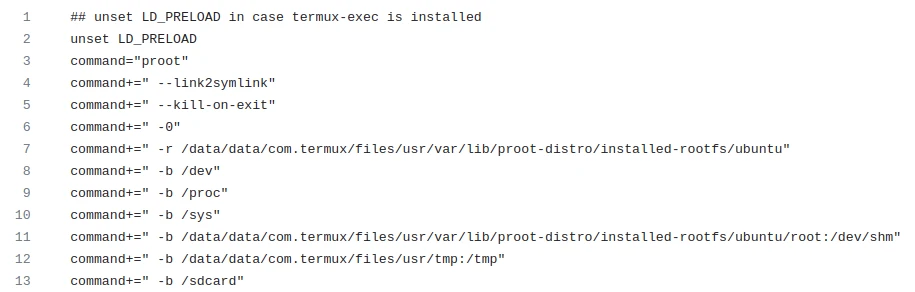
But since we have the useful proot-distro script, why not make good use of it? It is a wrapper script for proot, integrating the processes of downloading, logging in to, and logging out of proot distributions, while also making it convenient to execute commands.
I explained its usage in proot-distro usage, but what if the distributions provided by the proot-distro maintainers do not meet your needs? For example:
- You need a rootfs for a specific Linux version, such as an LTS version of Ubuntu, but proot-distro’s Ubuntu is always the latest version.
- You need a rootfs for a specific architecture, such as 32-bit x86 Manjaro
- You want to run an x86_64 system on an ARM64 device
Fortunately, proot-distro allows us to “register” proot distributions. We can add our own rootfs and then operate it with the proot-disro command.
2. How to build a custom Linux rootfs #
Most distributions have their own rootfs building tools. Note that packages like debootstrap included in Termux may have permission issues, so it is safer to create the rootfs on a Linux computer and then move it to the phone.
- Ubuntu: debootstrap or download an automatically built rootfs
- Debian:debootstrap
- Fedora:supermin
- openSUSE: download an automatically built rootfs
- Alpine:Bootstrapping Alpine Linux
- Arch:pacstrap
- Manjaro:pacstrap
- Void:Installation via chroot
You can also refer to the proot-distro author’s scripts to understand how to create a custom rootfs.
3. Register a new Ubuntu proot-distro #
- Open Termux and install proot-distro
pkg install proot-distro-
Go to Ubuntu daily builds and copy the Ubuntu base 22.04 URL. This is a minimal system.
-
Temporarily download it to the Termux home directory
pkg install wget

wget https://cdimage.ubuntu.com/ubuntu-base/releases/22.04/release/ubuntu-base-22.04.3-base-arm64.tar.gz- Calculate the SHA256 checksum, then remove it
pkg install coreutils

sha256sum ubuntu-base-22.04.3-base-arm64.tar.gz

rm ubuntu-base-22.04.3-base-arm64.tar.gz- Switch to
$PREFIX/etc/proot-distro, where proot scripts are stored, copy the sample script, and name itubuntu22.04.sh
cd $PREFIX/etc/proot-distro
cp distro.sh.sample ubuntu22.04.sh- Edit it
vim ubuntu22.04.sh- Add the following content. I omitted the original comments.
# The architecture should match the phone processor architecture
DISTRO_ARCH=aarch64

# Display name of the distribution
DISTRO_NAME="Ubuntu 22.04 LTS"

# Comment
DISTRO_COMMENT="Ubuntu 22.04 LTS Jammy Jellyfish"

# Directory depth of the archive, default is 1, which ignores the root directory. But Ubuntu base extracts directly as the filesystem, so set 0 here
TARBALL_STRIP_OPT=0

# Each architecture in the array corresponds to a rootfs URL. You can also upload the rootfs to your own Github instead
TARBALL_URL['aarch64']="https://cdimage.ubuntu.com/ubuntu-base/releases/22.04/release/ubuntu-base-22.04.3-base-arm64.tar.gz"

# Fill in the archive's SHA256 checksum
TARBALL_SHA256['aarch64']="bdae94b05d0fca7decbe164010af2ac1b772a9dda21ed9fb5552b5674ad634a3"

# Commands to run after installation
distro_setup() {
        run_proot_cmd touch /etc/hello-world
}-
Try running
proot-distro list; you can see that the Ubuntu 22.04 LTS we just added has appeared in the list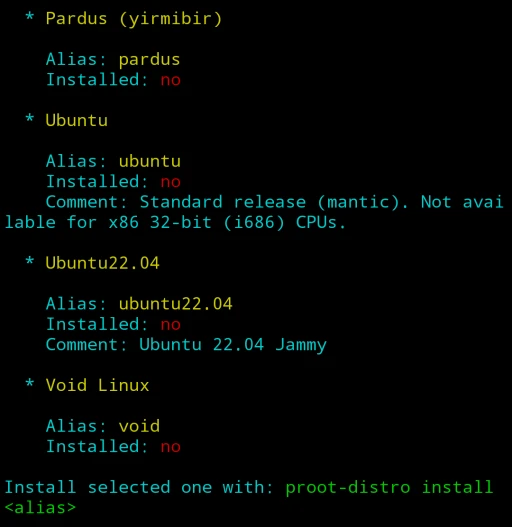
-
Try installing Ubuntu 22.04 LTS. proot-distro will automatically fix permission issues
proot-distro install ubuntu22.04- Log in
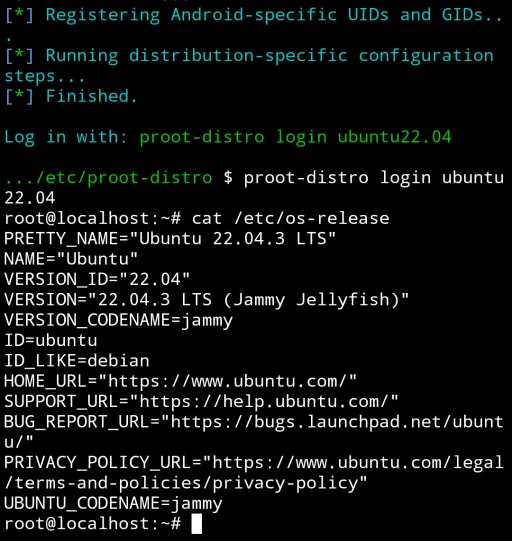
proot-distro login ubuntu22.04- Check with
cat /etc/os-releaseand confirm that the displayed version is Ubuntu 22.04. Then refer to the proot Ubuntu installation guide to install it as a complete system.