Ubuntu is a well-known Linux distribution. Besides using it on computers, Android devices can also install Linux distributions without root privileges through Termux Proot container technology.
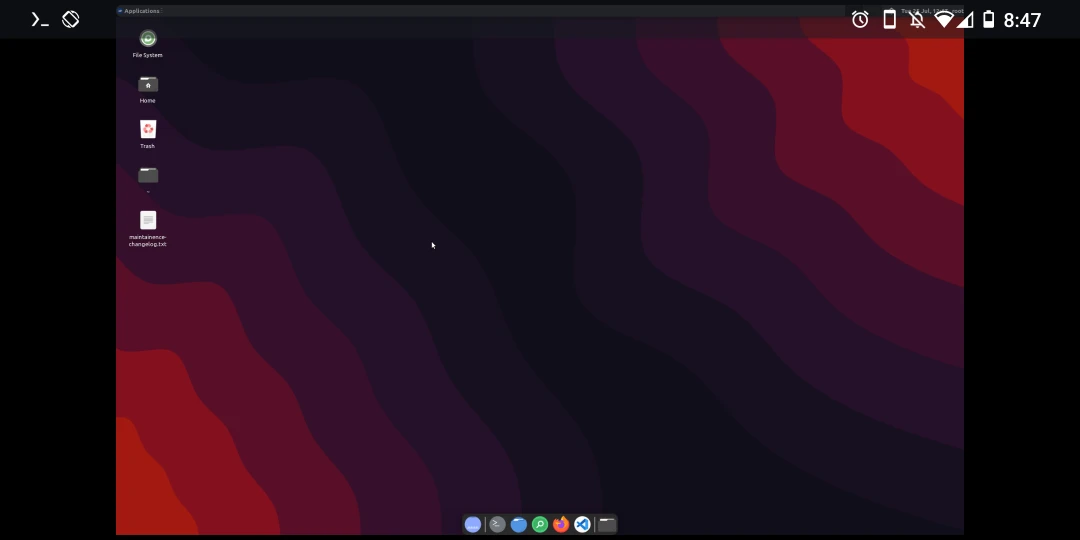
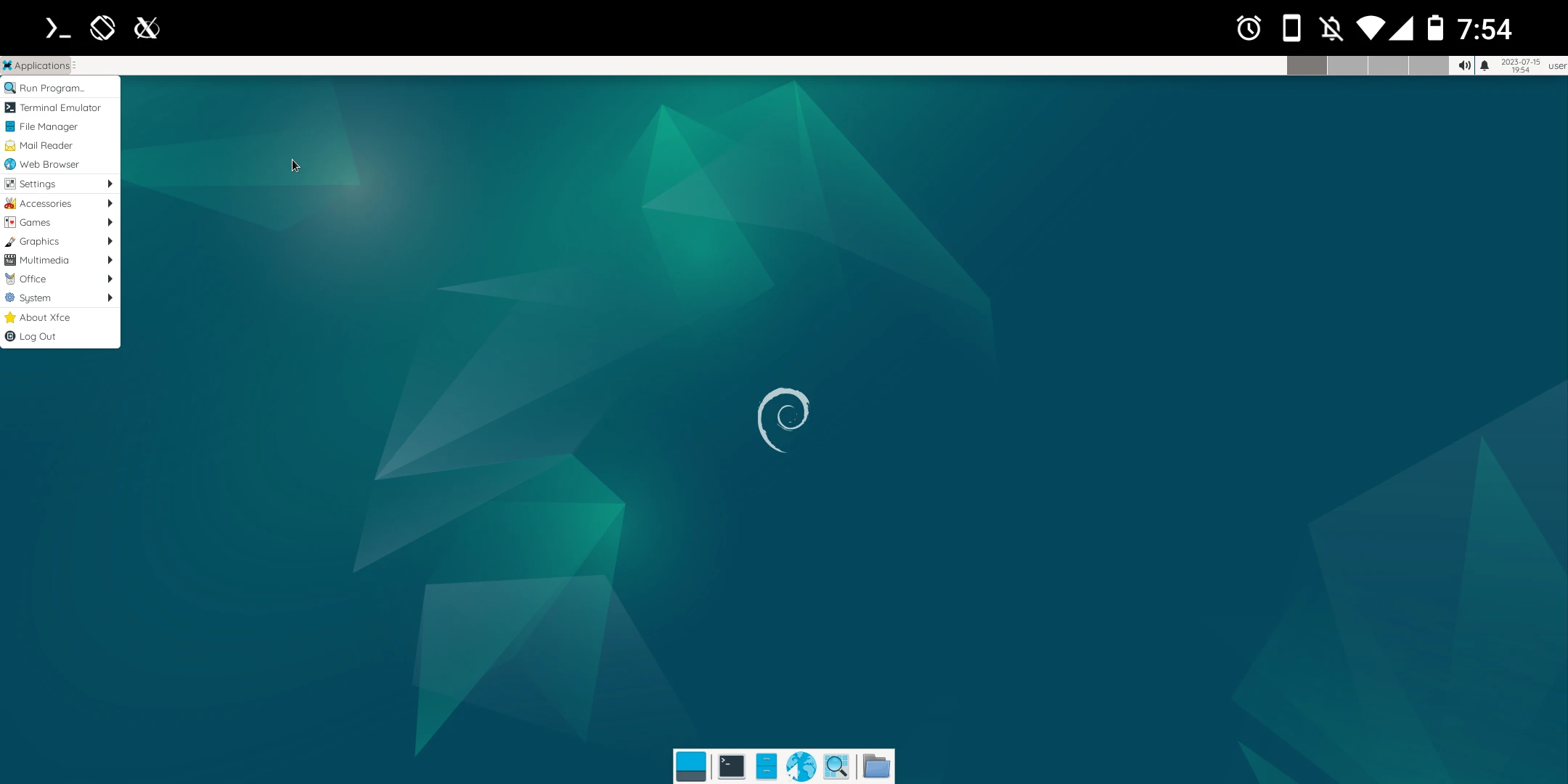
The lazy solution used below is “Udroid”. Compared with manually entering proot-distro commands, this version of the Linux installation process only requires a few lines of commands. It installs an Ubuntu 22.04 LTS system for you, with a browser and office software built in. GNOME, XFCE, and Mate are available as desktop environment choices.

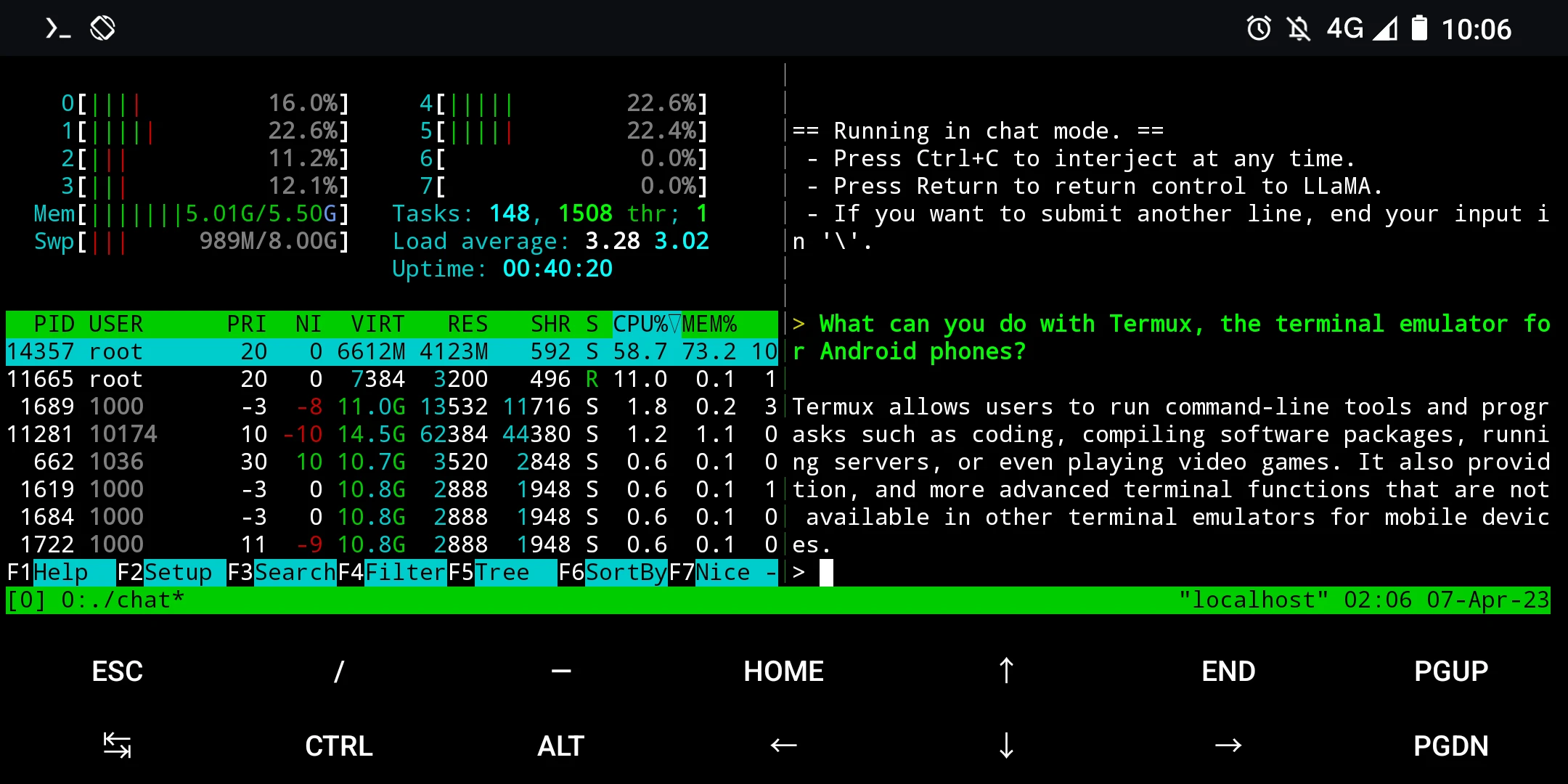
Because Termux itself is a text-only interface, after installing Ubuntu you can also skip starting the graphical environment and simply run programs and scripts.
See also: proot Ubuntu
1. Prerequisites #
To run Udroid, the phone needs at least 4GB RAM, and the graphical interface needs at least 6GB. Prepare 10GB of storage space.
Install Termux and VNC Viewer. Udroid does not seem to be compatible with Termux X11.
-
Install Termux: How to Use Termux
-
Install AVNC Viewer
2. Run the Udroid installation script #
- Open Termux and configure the audio server to start automatically
echo 'pulseaudio --start --exit-idle-time=-1' > ~/.profile
echo 'pacmd load-module module-native-protocol-tcp auth-ip-acl=127.0.0.1 auth-anonymous=1' > ~/.profile- Copy these lines of commands, long-press in Termux to paste them, press Enter, and wait for the 2GB file to finish downloading, installing, and extracting. Yes, Udroid really is quite huge.
pkg install git
git clone https://github.com/RandomCoderOrg/fs-manager-udroid
cd fs-manager-udroid
bash install.sh

udroid install jammy:xfce4
udroid login jammy:xfce4-
It will automatically log in afterward. At first, you may encounter zsh asking whether to update; enter
yand wait for it to finish. When the prompt becomes~, that means you have entered text-mode proot Ubuntu. Try using theapt updatecommand to update the package list.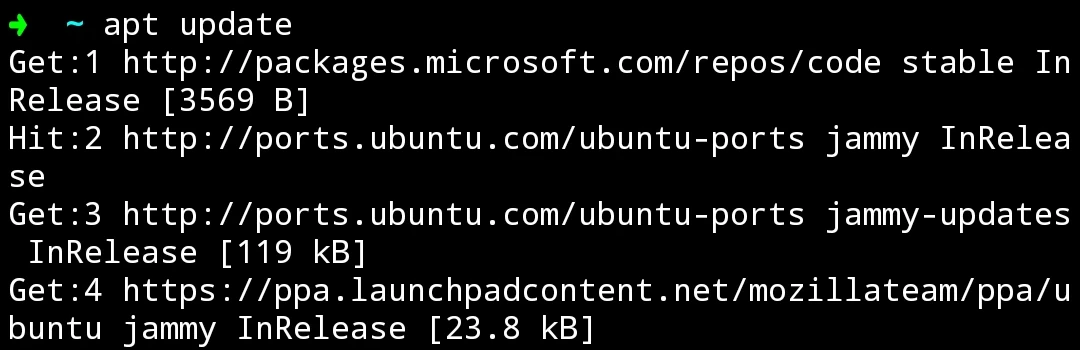
-
Udroid logs in as root by default. You need to create a normal user account yourself:
apt install openssl

username="user"
password="password"

useradd -m \
    -p "$(openssl passwd -1 ${password})" \
    -G sudo \
    -d /home/${username} \
    -k /etc/skel \
    -s /bin/bash \
$username- However, Udroid’s normal user will show the
The "no new privileges" flag is seterror. Reinstallsudoto solve it:
apt reinstall sudo3. Set time zone, Chinese, input method, and disable Snap #
- Set the time zone to Taipei, Taiwan
sudo ln -sf /usr/share/zoneinfo/Asia/Taipei /etc/localtime- Install locales, the Fcitx5 input method, and Chinese fonts
sudo apt install locales fcitx5* fonts-noto fonts-noto-cjk- Generate Chinese locales
sudo locale-gen zh_TW
sudo locale-gen zh_TW.UTF-8
sudo dpkg-reconfigure locales
sudo update-locale LANG="zh_TW.UTF-8" LANGUAGE="zh_TW"- Edit
.profilewith VIM
vim ~/.profile- Add the following content to set the language to Traditional Chinese and specify Fcitx5 as the input method. Configure Fcitx5 and PulseAudio to start automatically after login
LANG=zh_TW.UTF-8
LC_CTYPE=zh_TW.UTF-8
LC_NUMERIC=zh_TW.UTF-8
LC_TIME=zh_TW.UTF-8
LC_COLLATE=zh_TW.UTF-8
LC_MONETARY=zh_TW.UTF-8
LC_MESSAGES=zh_TW.UTF-8
LC_PAPER=zh_TW.UTF-8
LC_NAME=zh_TW.UTF-8
LC_ADDRESS=zh_TW.UTF-8
LC_TELEPHONE=zh_TW.UTF-8
LC_MEASUREMENT=zh_TW.UTF-8
LC_IDENTIFICATION=zh_TW.UTF-8
LC_ALL=

GTK_IM_MODULE=fcitx
QT_IM_MODULE=fcitx
XMODIFIERS=@im=fcitx
SDL_IM_MODULE=fcitx
GLFW_IM_MODULE=ibus

export PULSE_SERVER=tcp:127.0.0.1- Finally, disable Snap, because Snap cannot work in a Proot environment
sudo apt purge snapd
sudo cat <<EOF | sudo tee /etc/apt/preferences.d/nosnap.pref
Package: snapd
Pin: release a=*
Pin-Priority: -10
EOF
4. Start the desktop environment #
- Change the root password
passwd root- Change the VNC password
vncpasswd-
Enter the
startvnccommand to start the VNC server -
Open AVNC Viewer, enter
localhost:5900as the connection IP, and you will see the desktop.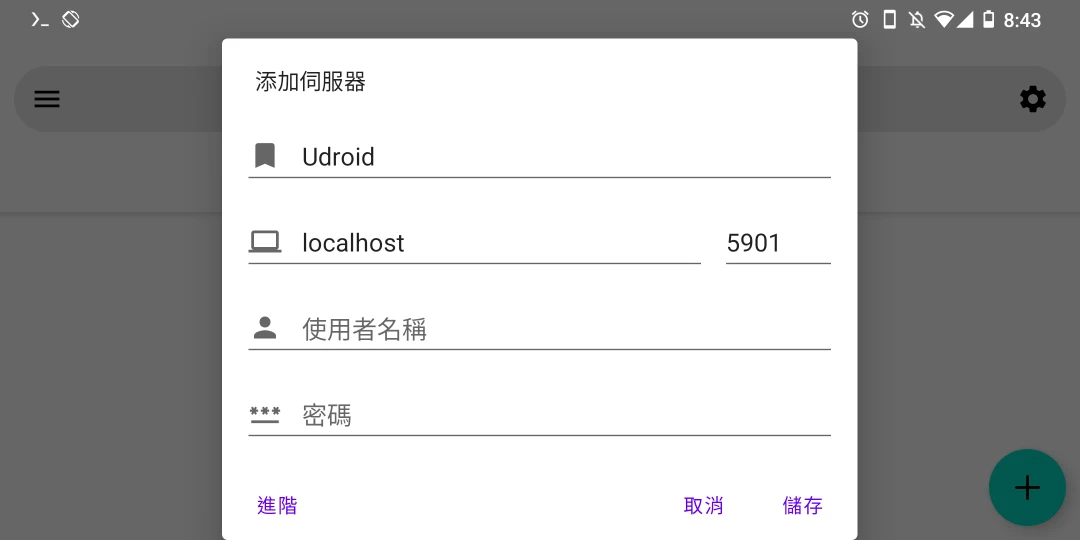
-
Close AVNC Viewer, return to Termux, and enter
stopvncto stop output.
5. Log in to Udroid without starting the desktop environment #
Open Termux and enter the command to log in:
udroid login jammy:xfce4