Note: this project is no longer maintained. Please switch to Winlator or another alternative.
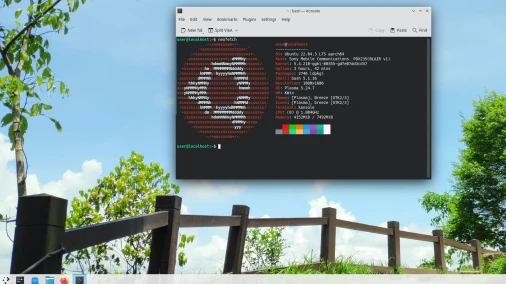
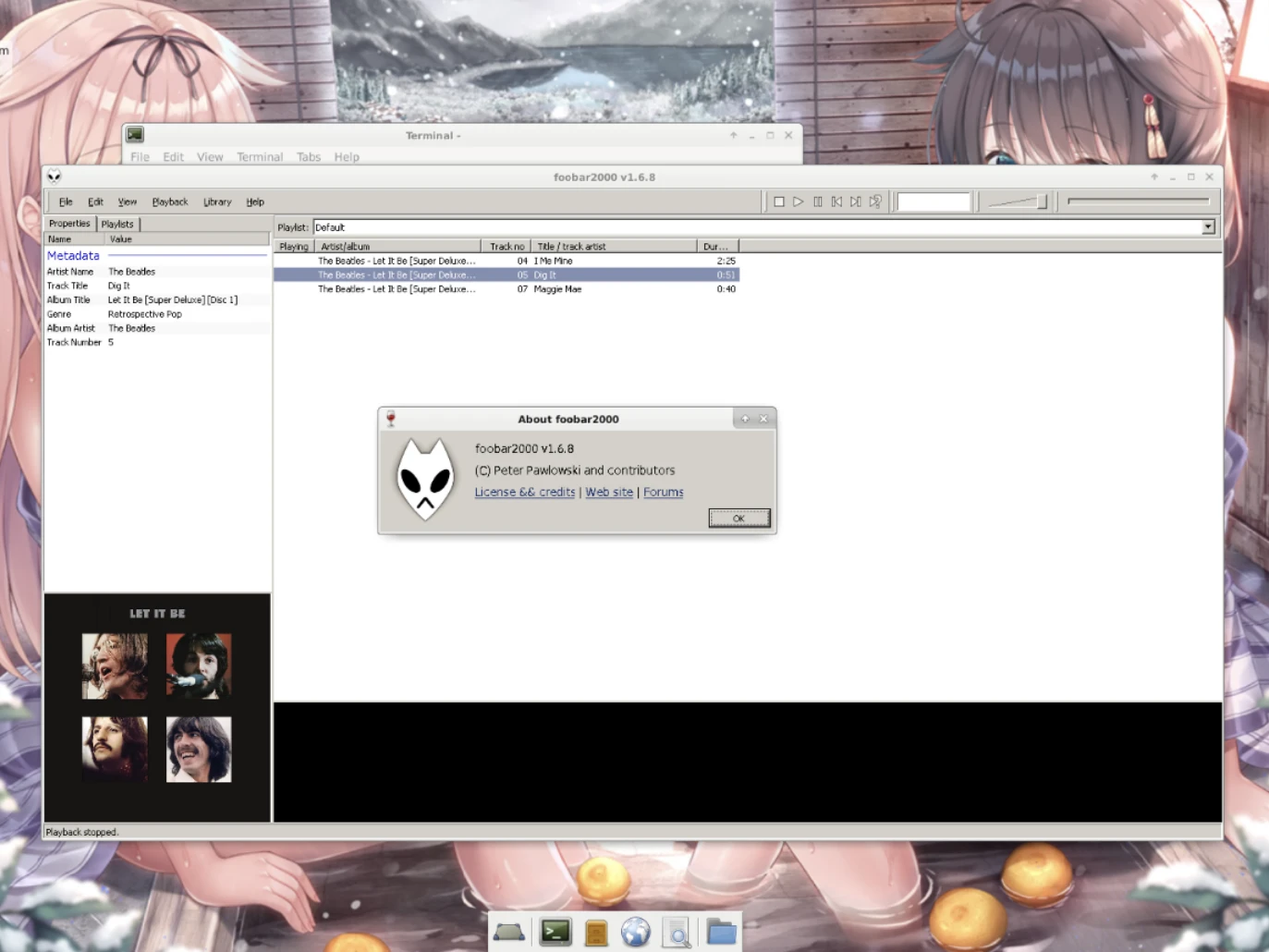
Mobox is an open source exe emulator that lets us play Windows games from Steam on Android phones.

Specifically, what Steam games can Mobox play? As long as a game can be launched on Steam Deck (Proton), Mobox should also be able to run it.
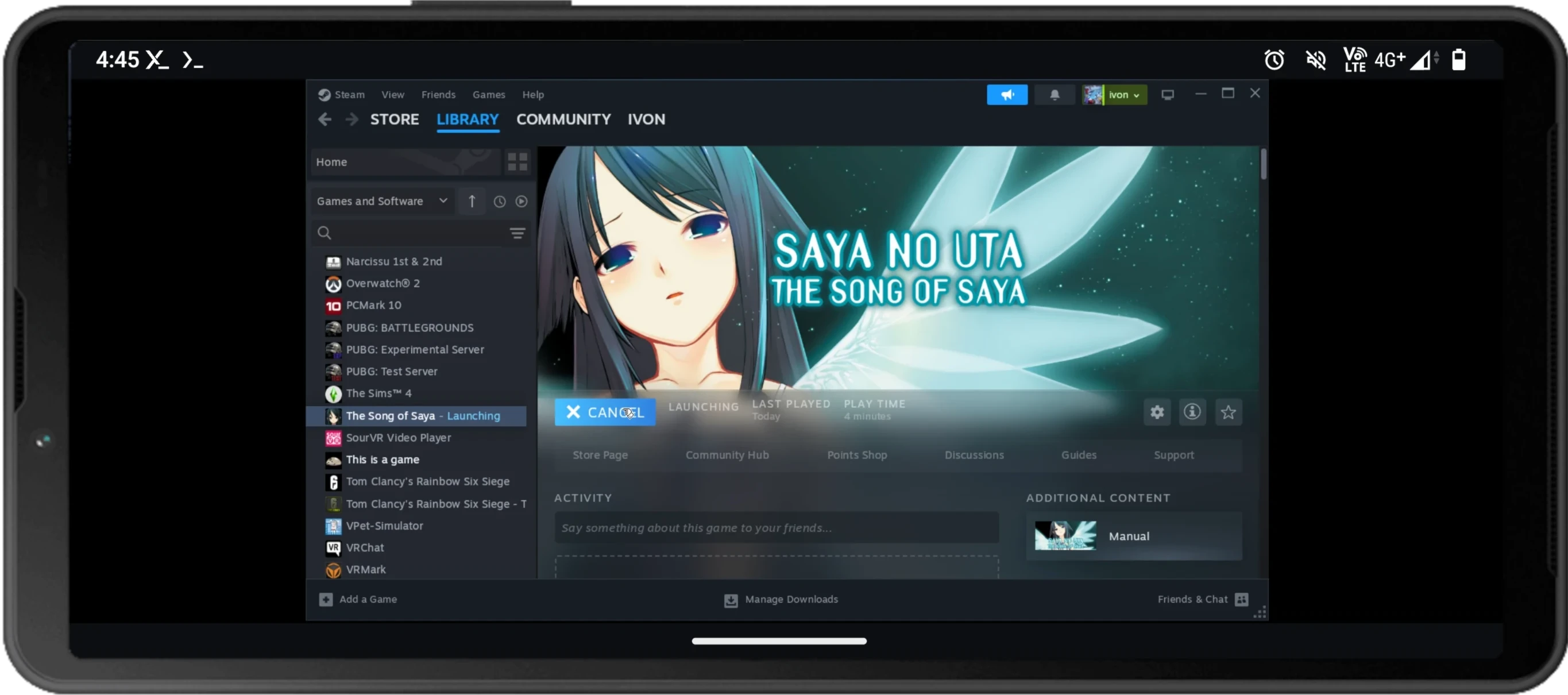
As long as the phone hardware is powerful enough, running any game is not a problem. For example, Youtuber Geek Bay successfully ran Cyberpunk 2077 on a Qualcomm 8 Gen 3 phone:
1. Hardware requirements #
- More than 10GB storage space
- More than 8GB RAM
- Prepare an external keyboard and mouse
For the principles behind Mobox, see Android轉譯玩Windows exe遊戲的方法一覽
The biggest difference is that Mobox uses Termux’s native packages to run the Linux system. Without container overhead, it runs at almost native performance, much faster than Winlator and Termux Proot, and roughly on par with Termux chroot performance.
The drawback is that Mobox operation is not as intuitive as Winlator’s interface, and requires typing a few commands.
Because Box64 translating Wine consumes a lot of performance, if you plan to play 3D AAA games, the phone processor should preferably be Qualcomm SD 865 or above. Also, considering graphics driver compatibility, Qualcomm processors are preferable; MediaTek may not be able to run at full speed.
My test environment #
- Sony Xperia 5 II
- Lineage OS 21 (Android 14)
- Qualcomm Snapdragon 865
- 8GB RAM
2. Install prerequisite packages #
Refer to the original author olegos2’s Github instructions
-
Install Termux
-
Configure Termux X11
-
In Termux X11’s
Preferences, set Display Mode to exact, and Display Resolution to 1280x720 (you can set a higher resolution depending on phone performance). Then uncheck Reseed screen while software keyboard is open. Also check Force Landscape Orientation.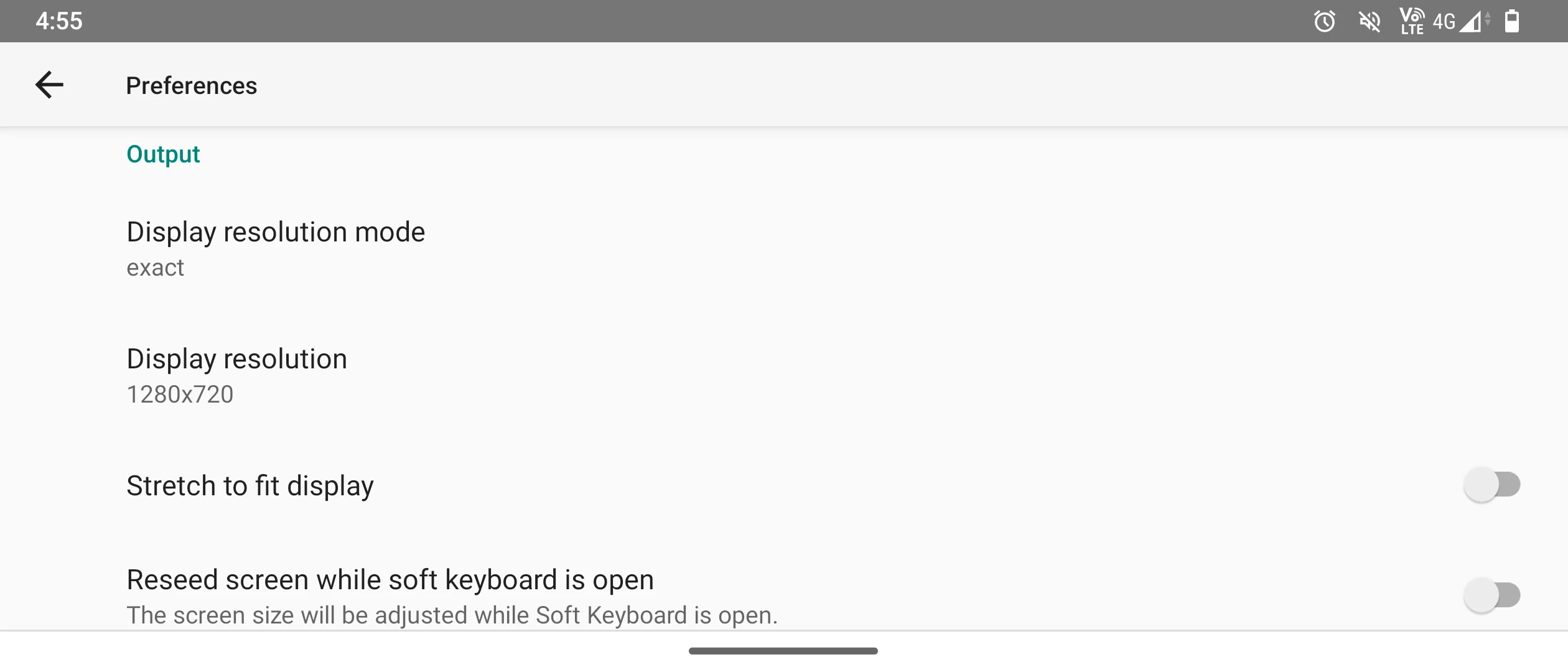
3. Install Mobox #
-
In the phone system settings, force stop both the Termux and Termux X11 apps.
-
Open Termux X11 and leave it waiting in the background
-
Open Termux
-
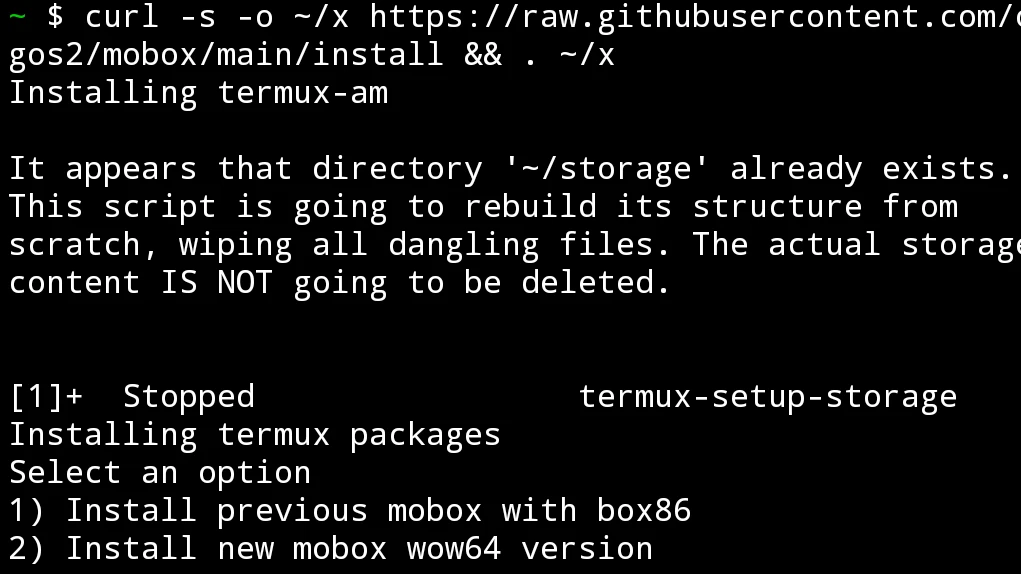
Run the script provided by the Mobox author
curl -s -o ~/x https://raw.githubusercontent.com/olegos2/mobox/main/install && . ~/x-
When asked which version of Box86 to install, enter 2 to select the Wow64 version
-
Wait for Mobox to install packages, then enter the
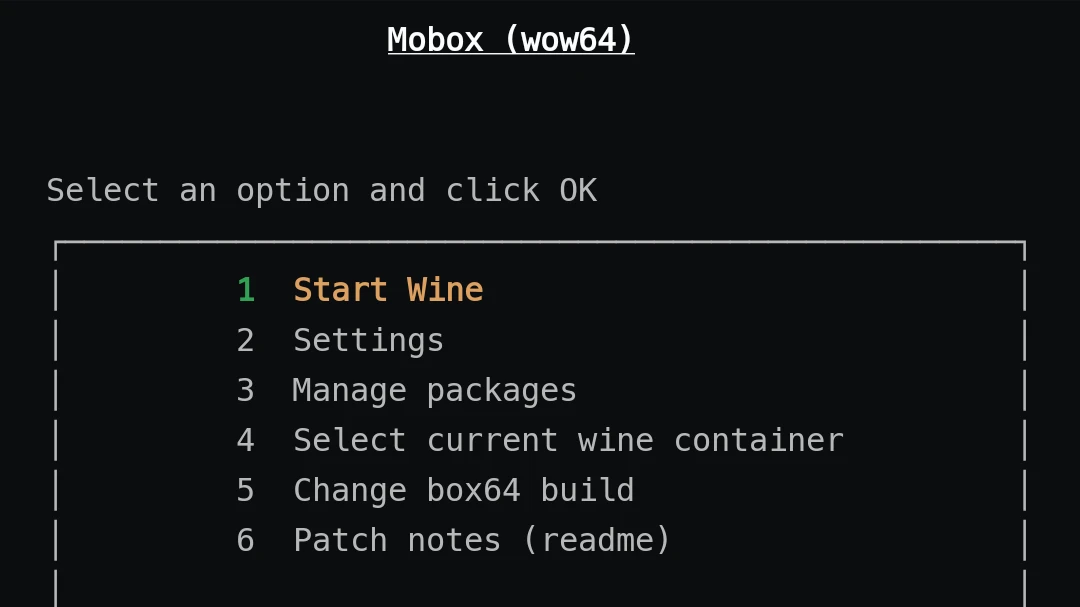
moboxcommand to start the environment. -
Use the on-screen arrow keys to move to Start Wine, then press Enter
-
Turn the phone sideways and wait for Mobox to initialize the system (pay attention to whether there is a
Cannot Open Display:error message)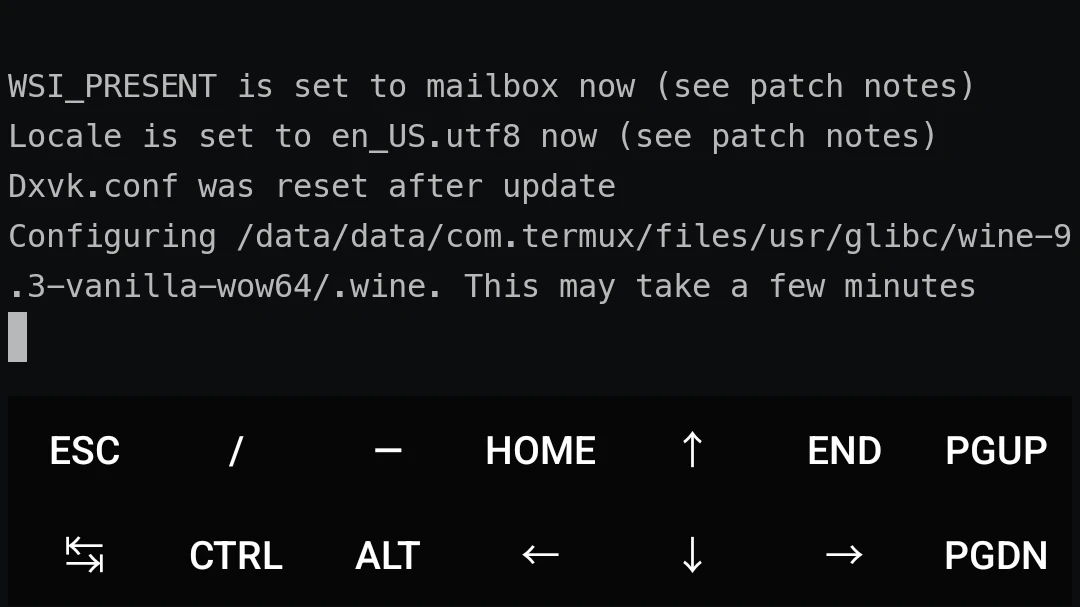
-
Next, your screen should automatically switch to the Termux X11 app, and you will see the Wine file manager.
-
Termux X11 operates in touchpad mode by default: two-finger tap for right click, double tap for left click, and use the back gesture to bring up the phone keyboard
-
Exit method: go to the Termux terminal, press 1 to exit, enter
exit, then force stop the Termux and Termux X11 apps.
4. Modify performance settings #
- Run Mobox
mobox-
In Settings -> Dynarecs settings, enter 45 to improve performance and compatibility.
-
In Wineprefix Settings -> Change Wine esync mode, select Enable esync without root.
-
Return to the main menu and select Start Wine
-
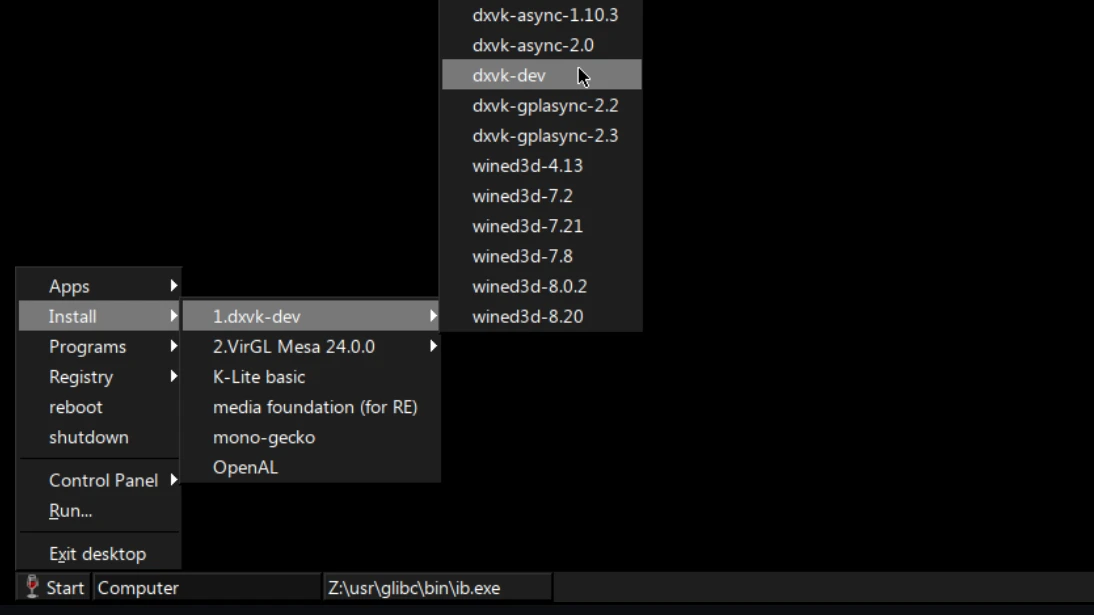
Click Start in the lower left corner and install DXVK-dev
-
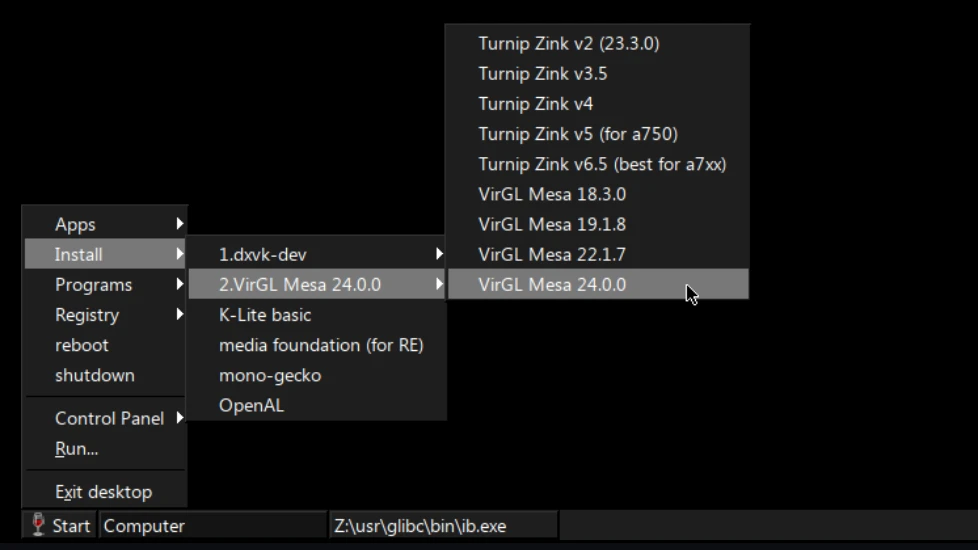
For the graphics driver, if you have a Qualcomm processor, choose the latest Turnip. For non-Qualcomm processors, install VirGL Mesa.
5. Enable Chinese font support in Mobox #
Reference: 一个中文汉字无法显示(显示口口框框)的解决方案 #362
- Run the following commands in Termux
unset LD_PRELOAD
export PATH=$PREFIX/glibc/bin:$PATH- Generate Traditional Chinese
sed -i 's/^#zh_TW.UTF-8 UTF-8/zh_TW.UTF-8 UTF-8/' $PREFIX/glibc/etc/locale.gen

locale-gen- Download a Chinese font, such as Microsoft JhengHei.
mkdir ~/.fonts

cd ~/.fonts

wget https://github.com/zanjie1999/windows-fonts/raw/wine/msyh.ttc- Start Mobox
mobox-
In Settings -> System Settings -> Change locale, set locale to
zh_TW.UTF-8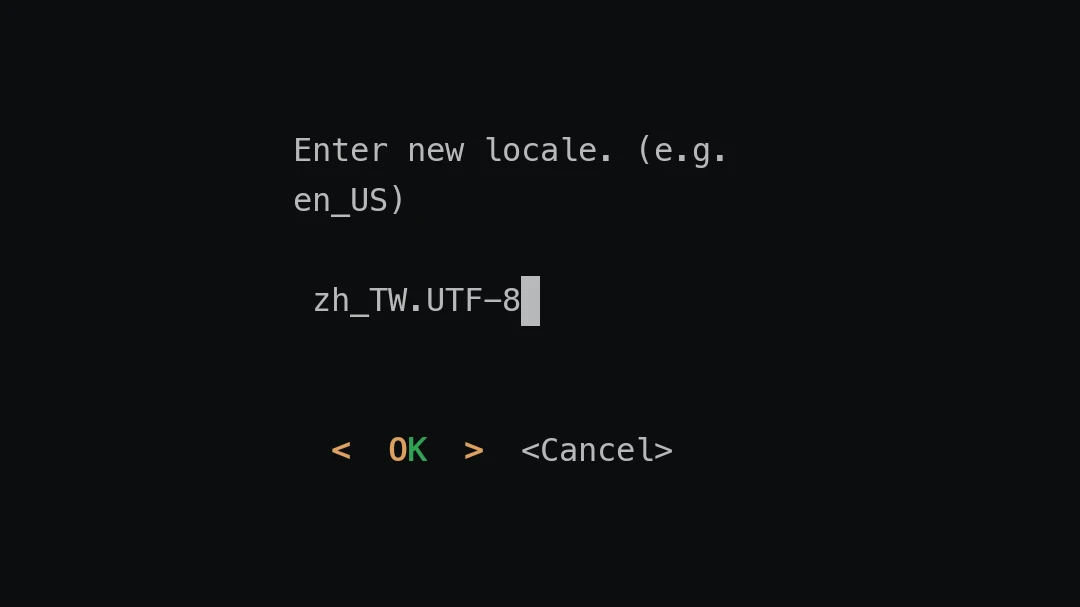
-
Then restart Termux.
-
If characters are still missing after installation, you may need to prepare a Windows computer, copy all ttf files under the
C:\Windows\Fontsfolder to the phone, and use Mobox’s file manager to move them toZ:/usr/glibc/wine資料夾/share/wine/fonts
6. Install Steam games #
There is no need to install the Linux version of Steam; the Windows Steam exe is enough.
-
You can use the phone browser to go to the Steam official site and download SteamSetup.exe. Or get it through this link: https://cdn.cloudflare.steamstatic.com/client/installer/SteamSetup.exe
-
In Mobox’s file manager, you should see files from your phone’s Download folder under the
D:drive. Scroll to findSteamSetup.exeand double-click it to run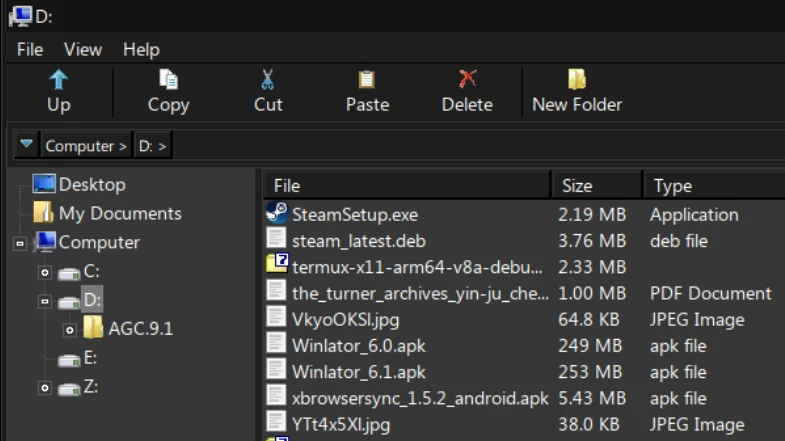
-
Follow the instructions to install Steam.
-
If Steam does not open automatically after installation, click Start in the lower left corner and start Steam
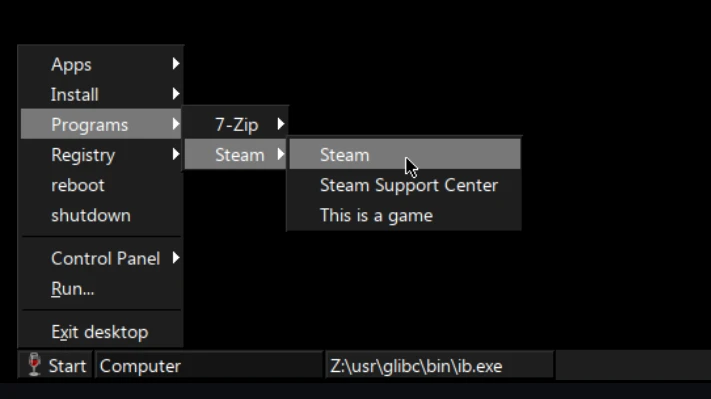
-
Steam may take some time to open for the first time. You can click Start -> Programs -> tskmgr to open Task Manager and see whether Steam is running.
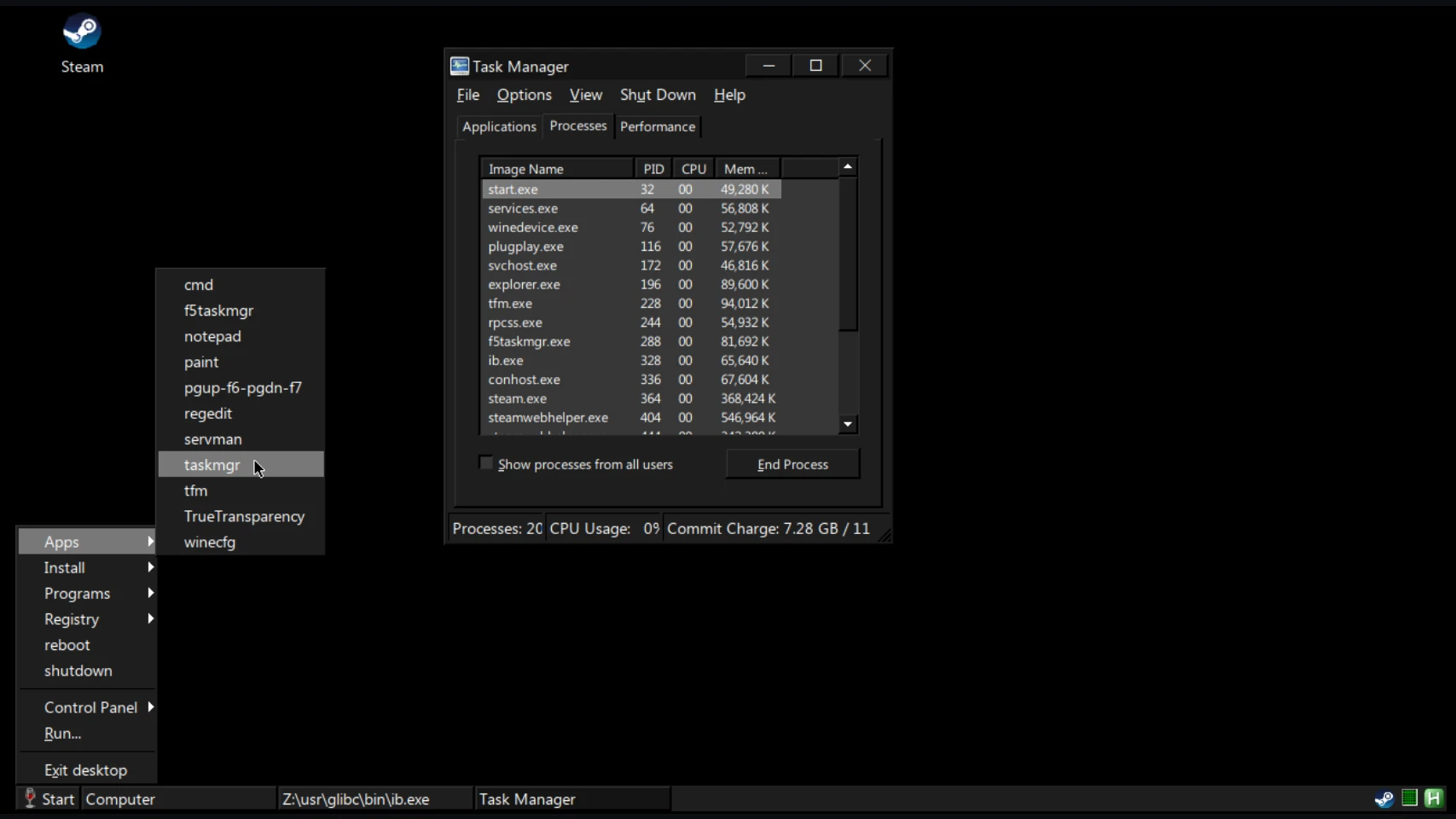
Note: if Steam keeps crashing like crazy, you can also consider using steamcmd to download games.
7. Play non-Steam games #
Just put the program’s exe under phone internal storage/Download, then double-click it to open.
For Wine-compatible exe games, see ProtonDB.
Report issues #
If there are any problems with the Mobox script, please report them to olegos2’s Github.