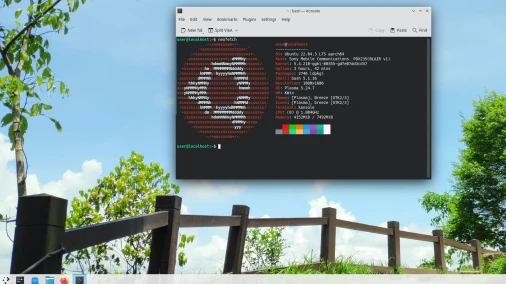
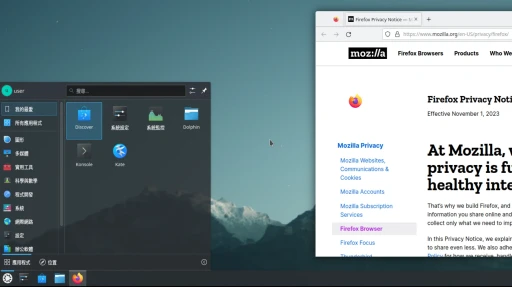
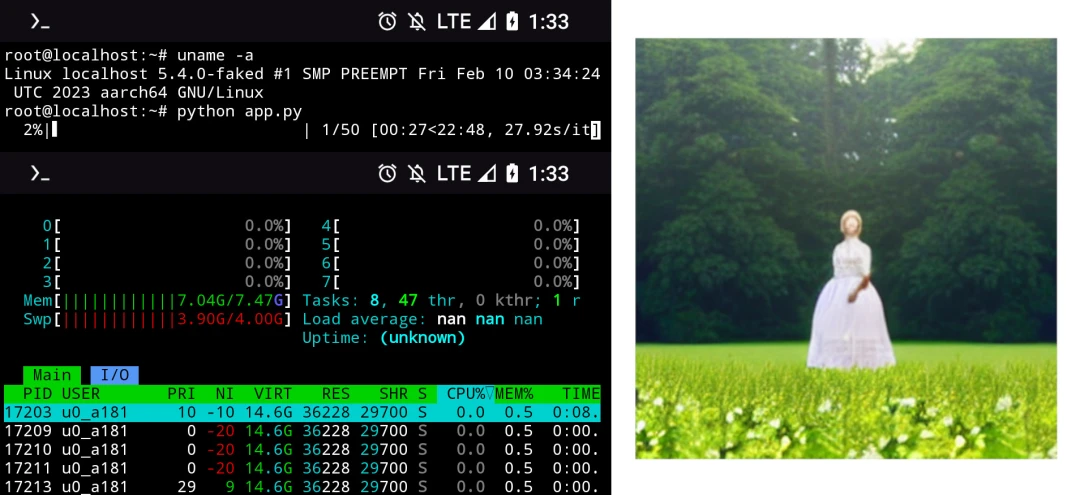
This article describes how to run the code editor Visual Studio Code (VSCode) on Android system without root permissions.
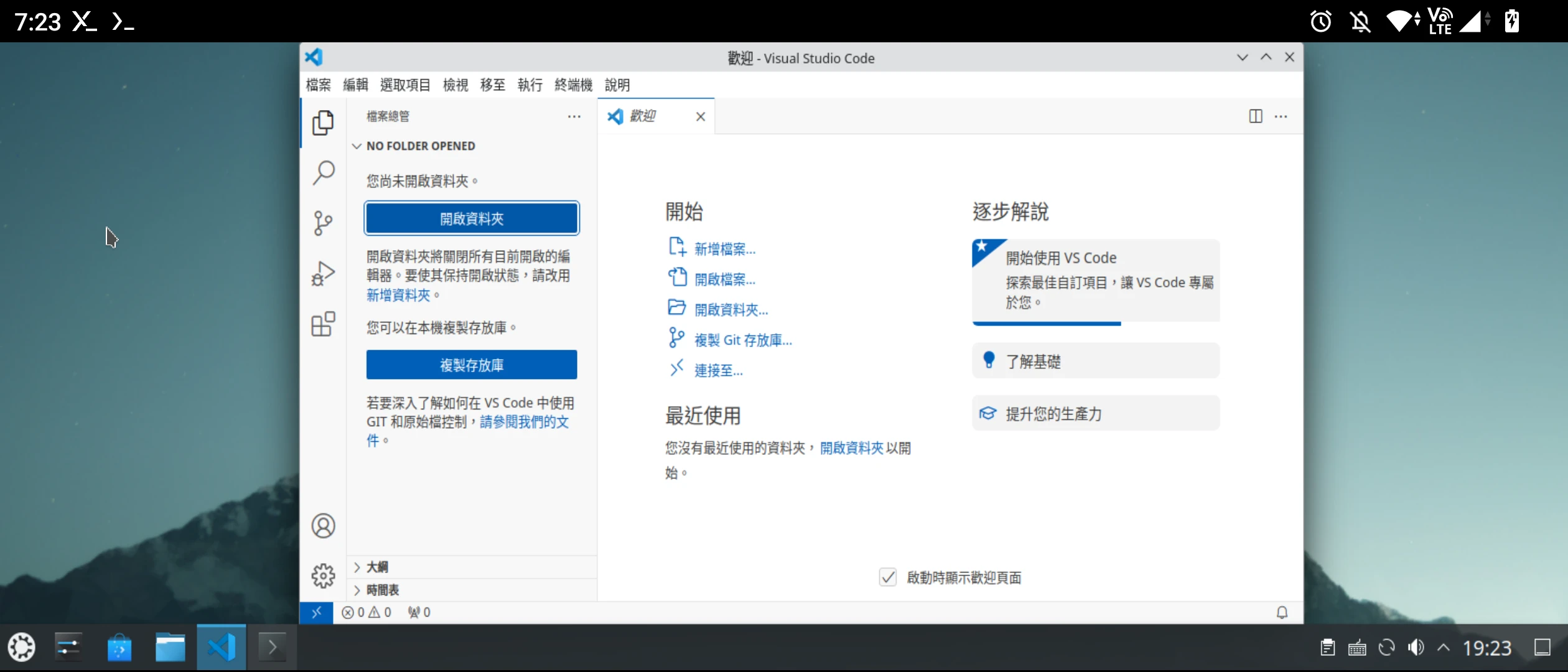
Developed by Microsoft, VSCode is a multifunctional code editor which supports a variety of programming languages through many extensions. This could turning it into a small IDE.
What we are gonna installed here is not the code-server, but the full code main program, which can install almost all extensions.
So you can manage git projects and develop web programs
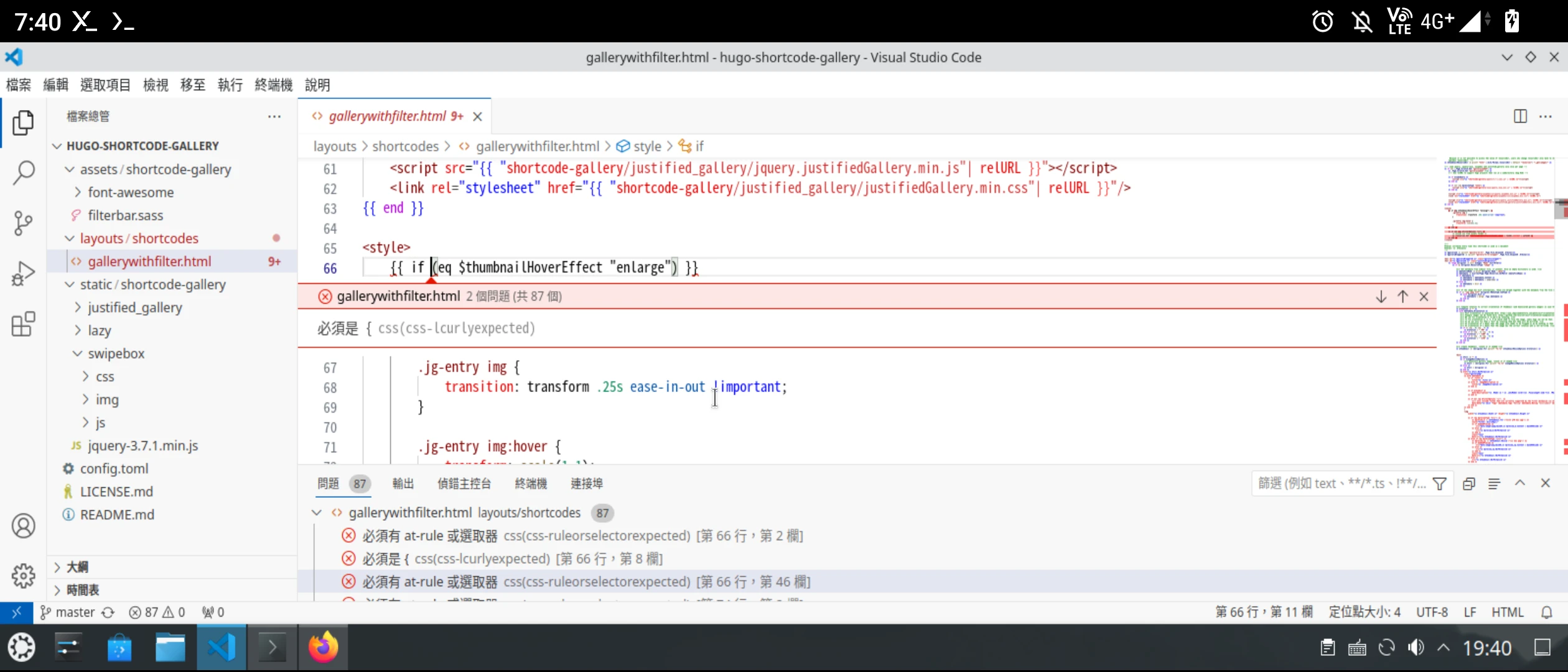
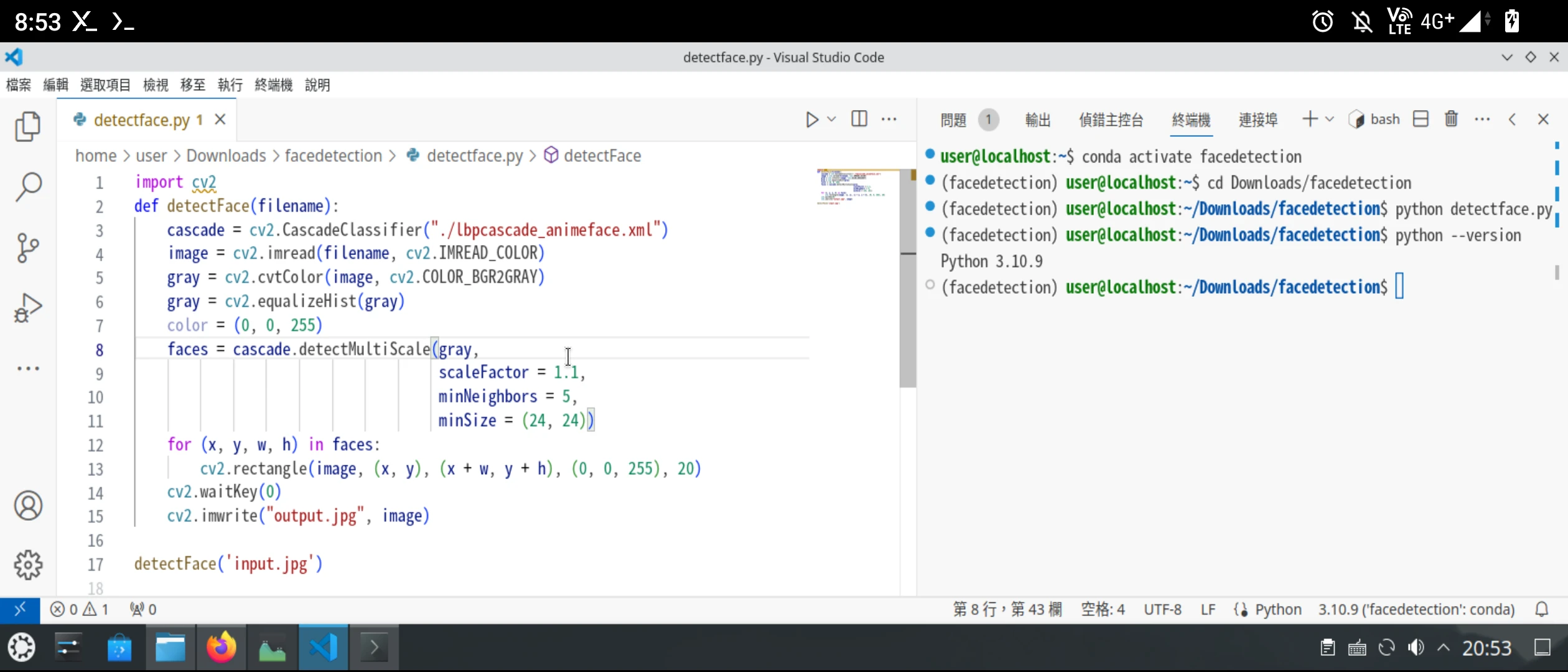
Or creating a Anaconda envrinonment to write a Python program
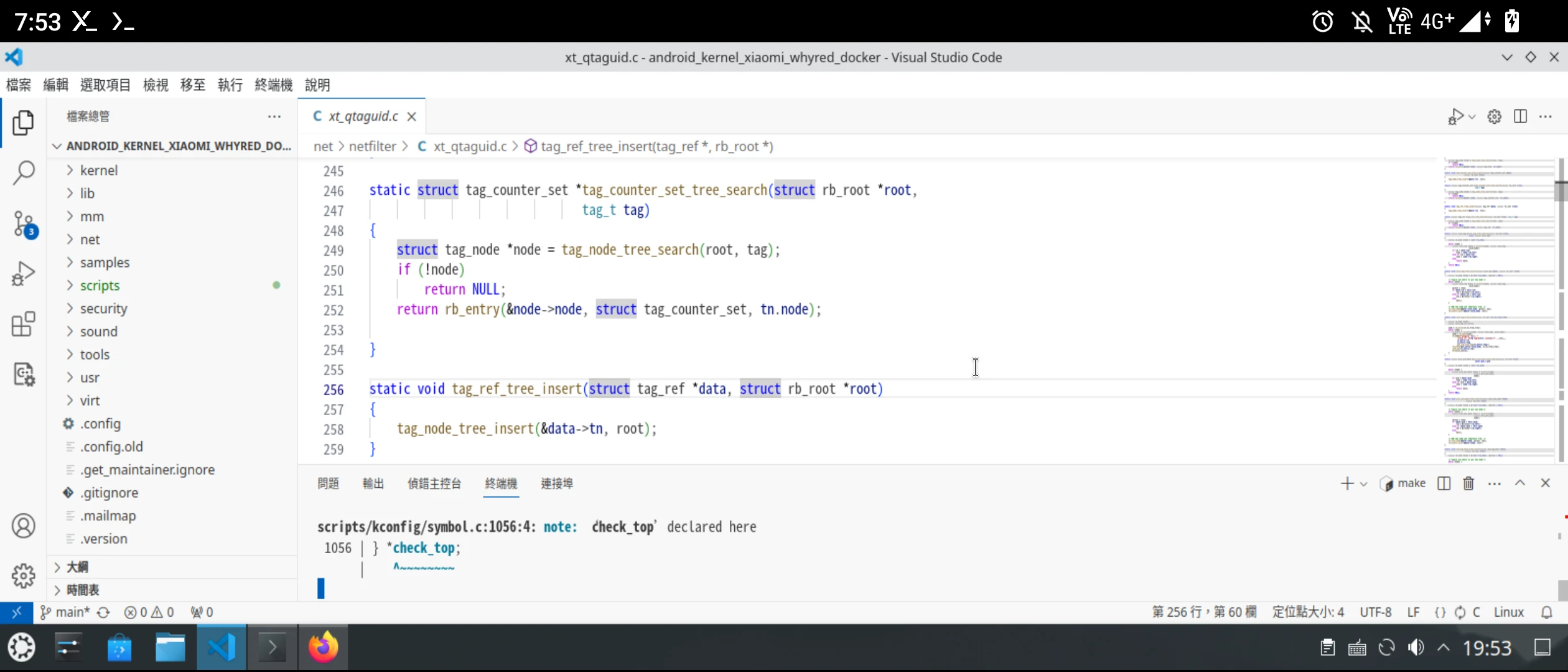
Or even modify the Linux kernel source code of Android
We will install the ARM64 version of Ubuntu environment through Termux, and then install VSCode in it.
1. Set up Linux environment #
It is recommended to use the phone or tablet that has RAM >= 8GB, storage space > 10 GB, and a processor of Qualcomm Snapdragon 845 or above. Ideally having an external keyboard and mouse connceted would be better.
-
Install Termux
-
Set up Termux X11
Then install a Linux distribution:
- proot Ubuntu or proot Debian: No need for root permissions, relatively slow.
- chroot Ubuntu: Requires root permissions, relatively fast.
2. Install Visual Studio Code #
-
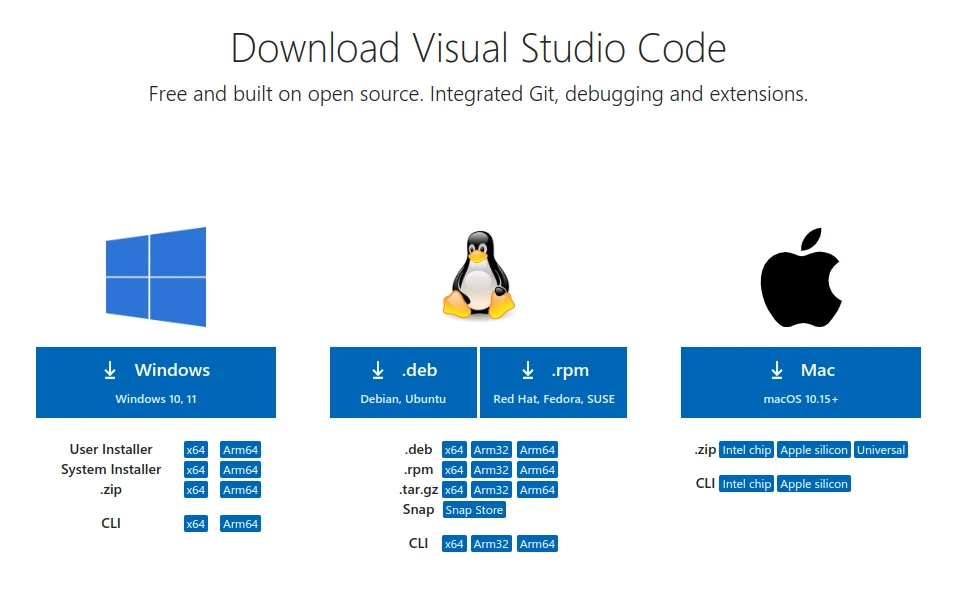
Go to Visual Studio Code official website to download the deb file of the ARM64 version.
-
Use the
aptcommand to install the deb file, followed by the path to the deb file. If you download it using the browser on Android, the path will become/sdcard/Download/code*.deb
sudo apt install ~/Downloads/code*.deb- After that, use vim to edit the Desktop Entry of VSCode
vim /usr/share/applications/code.desktop- Add
--no-sandboxafter theExec=line
Exec=/usr/bin/code --unity-launch %F --no-sandbox-
Click VSCode in the application list and try to start the program.
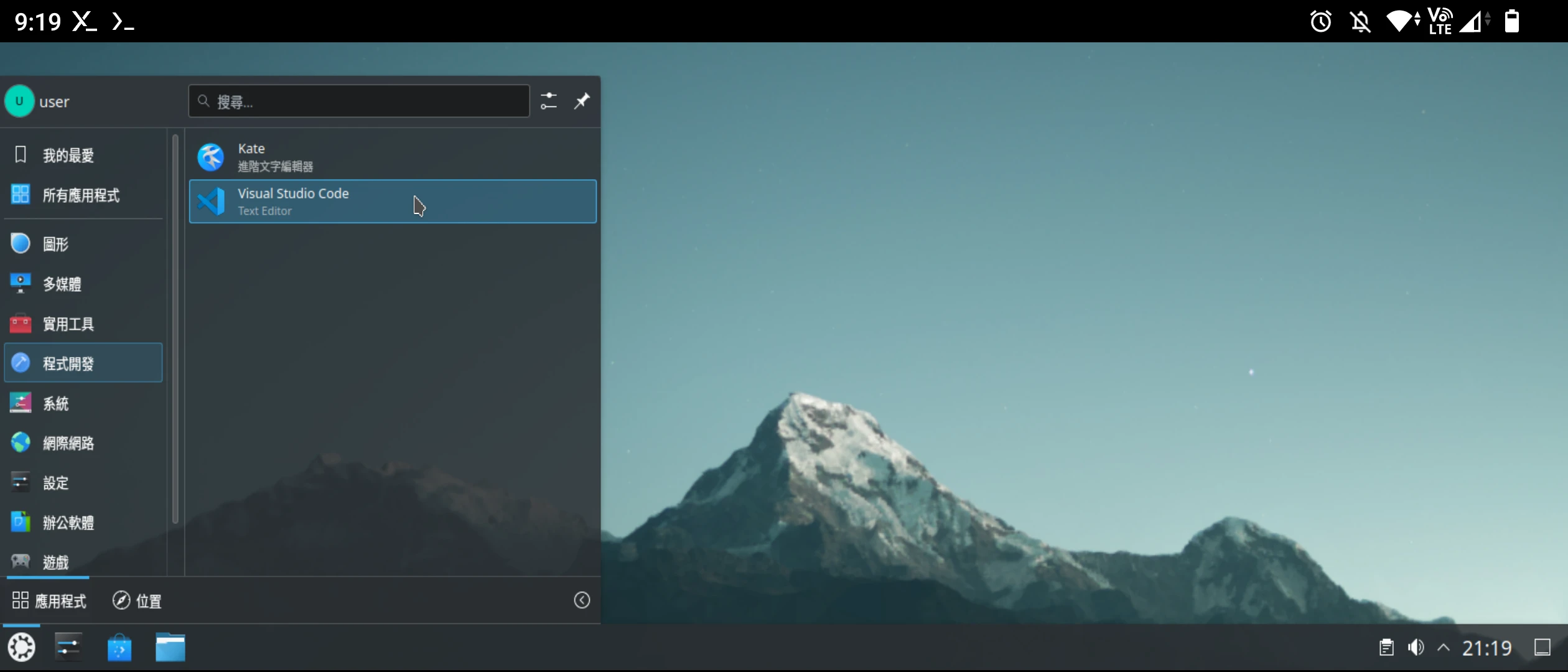
-
If you want to see the error message, you can start it from the terminal:
code --verbose3. Setting up the developing environment #
I won’t go into details about the setup of developing environment here. There are many Ubuntu + VSCode tutorials on the Internet. Note that you should search for “Develop with VSCode on Ubuntu” rather than “Connect VSCode to remote Ubuntu for developing”
You could directly open terminal in the VSCode panel and execute commands there.
For example, if you want to compile C language programs, install GCC:
sudo apt install build-essentialIf you want to have a Python Anaconda environment, you can refer to this article: Termux install Anaconda environment (miniforge)